For Dolphin Skimmi trouble, start by checking that it can reach sunlight for solar recharging. Work through the guide's eight fixes, or contact Poolbots' pool experts by live chat or phone. Every fix below is rewritten in plain English and sorted by what the robot is doing wrong, with the genuine part that fixes it.
Skimmer is not moving or cleaningStart with solar charging. Check that the skimmer has access to a sunny area of the pool.
Floating debris is left behindCheck the coarse filter basket for collected debris and empty it if needed. There is no full-filter indicator.
Skimmer gets stuck near obstaclesCheck for debris blocking the infrared sensors above and below the waterline.
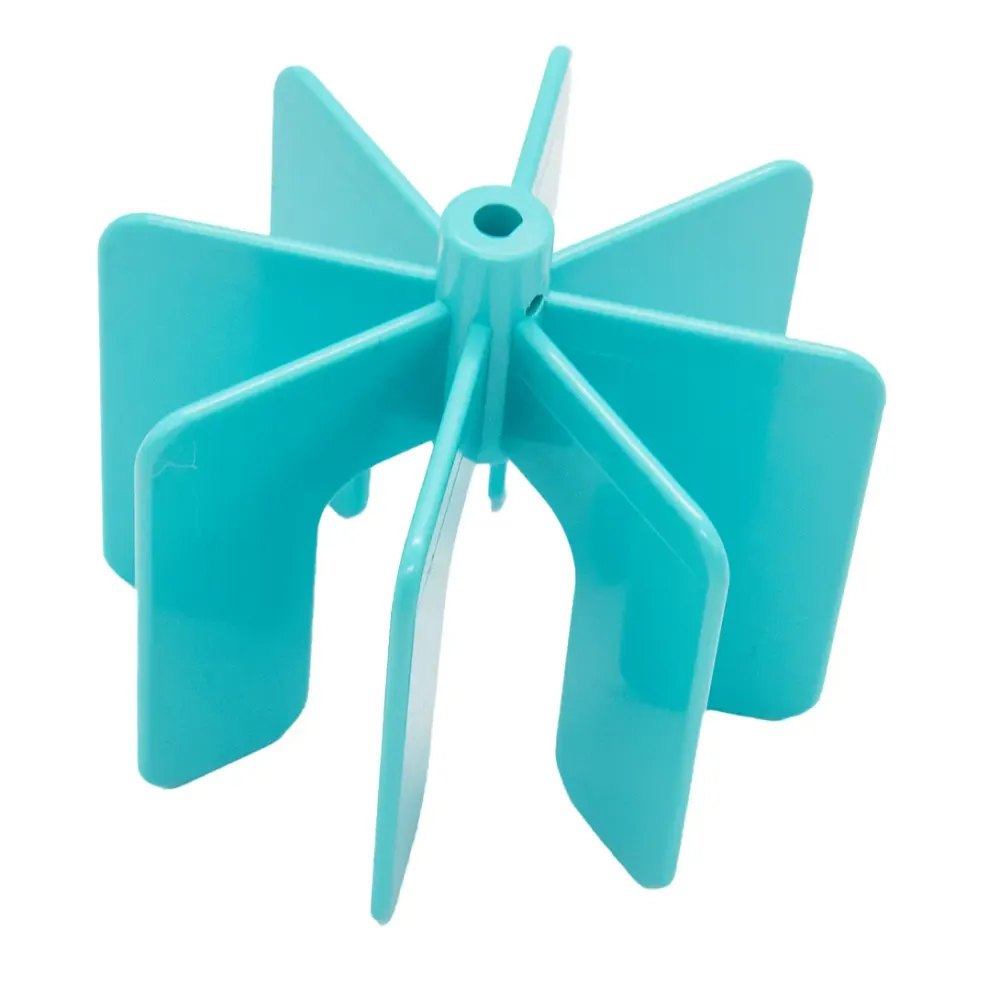
Main propeller appears blockedTurn the skimmer off and look for debris around the main propeller. Follow the safety instructions before handling it.
Start here
Three checks before you suspect the robot.
Skimmi runs on sunlight and a small pump, so most problems are light, debris or the intake. Where a check ends in a worn part, the genuine replacement is linked under it.
1
Give it sun
Skimmi charges from its solar panel. Shaded pools, dirty panels and short winter days all cut the run time.
2
Clean the debris tray
Empty and rinse the tray after each run; a full tray stops the skimmer collecting.
3
Check the pump intake
Pull out any leaves or hair caught in the intake and impeller.
Why isn't the Skimmi charging in a sunny location?Most common10 min
Try this first: Make sure the Skimmi has direct sunlight, then open the app and check the charging strength.
Your Dolphin Skimmi may not be charging because its battery is already full. With a full battery, the skimmer can use solar power instead of battery power. As sunlight weakens, the battery will power the skimmer again while continuing to charge.
Step 1Check direct sunlight
Make sure the Skimmi receives direct sunlight so its battery can recharge. Cold weather and cloudy skies can affect charging.
Step 2Check charging strength in the app
If it still is not charging, open the app and note the charging strength.
Below 5 Watts: Look for limescale buildup on top of the solar panel. If you find residue, gently remove it with diluted citric acid or vinegar.
Above 5 Watts: If the battery is not gaining charge despite this reading, it may be faulty. Contact Poolbots' pool experts by live chat or phone for help.
Important: This is a solar-powered robot. It needs direct sunlight and enough solar power to charge and operate properly.
How do I clean stuck paddlewheels on my Skimmi 300?Skimmi5 min2 parts
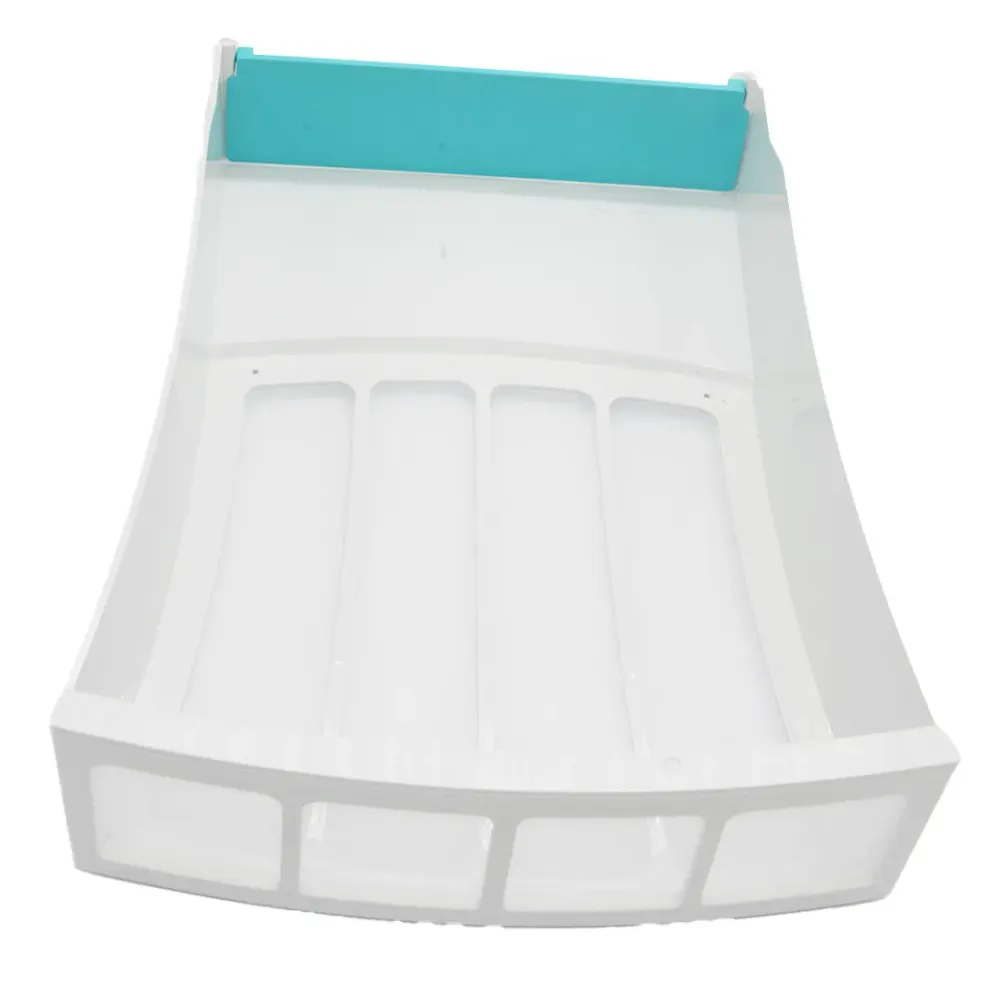
Try this first: Take the Skimmi out of the pool, turn it upside down, and check that the filter tray is snapped in before clearing debris from the side and front wheels.
Applies to: Dolphin Skimmi, Dolphin Skimmi 300.
Step 1: Take the Skimmi out of the water
Lift your Skimmi out of the pool before cleaning the paddlewheels.
Step 2: Flip it over
Turn the Skimmi so its underside faces up.
Step 3: Check the filter tray
Confirm that the filter tray is pushed all the way in and snapped into place.
Step 4: Check and clear the wheels
Rotate the side and front wheels while checking for hair, leaves, or other trapped objects. Use tweezers or needle-nose pliers to remove anything blocking their movement.
Parts that fix thisGenuine Maytronics parts that fit the Skimmi.
How do I clean a jammed front paddlewheel on my Dolphin Skimmi?Most common5 min2 parts
Try this first: First, turn off the Skimmi and take it out of the pool, then clear any debris caught in the front paddlewheel.
Step 1Turn off the Skimmi
Switch off your Dolphin Skimmi, then take it out of the pool.
Step 2Clear the front paddlewheel
Remove any debris caught in the paddlewheel.
Step 3Clean the filter tray
Empty the tray, then rinse it thoroughly to wash away any debris left inside.
Step 4Adjust the app setting if jams continue
If the paddlewheel keeps jamming after cleaning, open the app and change 'Wheels Unblock' to 'Forced'.
Power use: This setting keeps the wheels moving freely, but it uses more power and may shorten the total cleaning time. Once there is less debris in the pool, return 'Wheels Unblock' to 'Auto'.
Parts that fix thisGenuine Maytronics parts that fit the Skimmi.
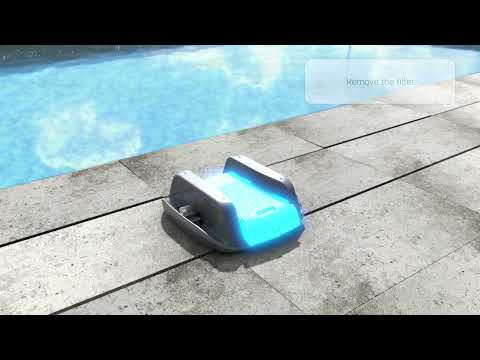
How do I replace the front paddlewheel on the Skimmi 300?SkimmiVideo10 min
Try this first: Start by switching the Skimmi off, turning it upside down, and taking out the filter tray to access the front paddlewheel.
Applies to Dolphin Skimmi and Dolphin Skimmi 300.
Step 1: Turn off the Skimmi
Switch the Skimmi off before working on the paddlewheel.
Step 2: Flip the robot over
Turn the Skimmi so its underside faces up.
Step 3: Take out the filter tray
Remove the tray before moving on to the paddlewheel.
Step 4: Remove the front paddlewheel
Rotate the front paddlewheel to the proper angle for removal, then pull it out.
Step 5: Replace the connectors if needed
If the connectors need replacement, remove the larger connector first, followed by the smaller connector. Install the new connectors.
Step 6: Fit the replacement paddlewheel
Line up one side of the wheel with the smaller connector first. Press the opposite side into the larger connector until it clicks into place. Check that the wheel rotates smoothly.
Step 7: Put the filter tray back
Refit the filter tray in its original position.
Why is my Dolphin Skimmi beeping with a flashing red LED?Skimmi10 min
Try this first: Count the red flashes in each 2-second cycle and check the app error. Three flashes mean a blocked wheel; one or two mean a temperature alert.
If your Dolphin Skimmi beeps and its LED flashes red, count the flashes every 2 seconds. The pattern identifies a blocked wheel or a temperature alert.
3 red flashes every 2 seconds: blocked wheel
This pattern means something is caught in a wheel. Follow these steps:
Step 1Check which wheel is blocked
Read the error message in the app to identify the stuck wheel. Remove any object or hair caught in it.
Step 2Clean the filter tray
Empty the tray, then rinse it with water.
Step 3Try the wheel-unblocking setting
You can also change Wheels Unblock to Increased Force in the app. This setting uses more power and reduces the Skimmi's total cleaning time.
1 or 2 red flashes every 2 seconds: overheating or freezing risk
When the Skimmi is too hot or too cold, it beeps and displays an error message in the app. This alert does not mean the skimmer is malfunctioning. It is a protective feature that pauses battery charging. If the Skimmi overheats, charging remains paused until its internal temperature cools down.
1 red flash every 2 seconds: The pool or outdoor temperature is below 39°F or above 131°F. Charging stops.
2 red flashes every 2 seconds: The battery temperature is below 39°F or above 131°F. Charging stops.
Step 1Address the temperature alert
If the Skimmi is too cold, move it to a sunny or warmer spot. Before putting it back in the pool, confirm that the pool temperature is within 39-131°F.
If the Skimmi is overheated, put it in the pool for 1-2 hours and gently splash a little water onto the solar panel.
Step 2Adjust the daytime schedule
In the MyDolphin Skimmi app, set Day Cleaning, the cleaning duration, to 20-30 minutes. Set Day Pause, the interval between cleaning periods, to 1 Hour during the day. These settings help preserve the Skimmi battery.
Step 3Turn off the beeping if preferred
To silence the alert, open Device Setting in the app and switch Alert Sound off. You can change this setting again once the weather cools down.
The troubleshooting table printed in the Skimmi manual, one card per symptom. A part named here is in the parts list below.
Robot can't be switched ON. Green pause LED is not lit or blinking
Likely cause
Battery is not charged.
What to do
Charge the robot - Plug the charger into the port under the robot or place the robot in direct sunlight.
Robot doesn't start cleaning. Battery indication is low or OFF. App says battery is low.
Likely cause
Battery is too low.
What to do
Plug the external charger into the port under the robot or place the robot in direct sunlight and let the battery recharge.
Robot does not move.
Likely cause
Cleaning has not started (green indication LED constantly ON).
Robot is on a pause between cleanings (green pause LED single-blinks every 6 seconds).
Battery is low (green LED blinks.
New app update failed (green pause LED is constantly blinking).
What to do
Open the app and tap the Start button.
Wait until the next cleaning cycle starts if the status bar in the app shows that it is in a recharge pause.
Connect the cable to the port under the robot or wait for the battery to charge in the sun.
Open the app and complete the robot’s software update.
Robot has stopped moving, it gives a red error signal .
Likely cause
There is an object stuck in one of the wheels of the robot.
What to do
Remove the object or hair. If it's the front wheel, you can remove and clean it. If it still doesn't work, contact Customer Care: Maytronics customer care
Robot often stands still, the cleaning time has been significantly reduced.
Likely cause
Cloudy skies, low sunny intensity for a long time.
Decreased battery capacity.
What to do
Tap the cleaning mode box in the app home screen, select the short sessions option. Or, charge the robot with the cable.
Contact Customer Care to replace the battery: Maytronics customer care
Robot turns only in circles.
Likely cause
Sensor covers are dirty.
Salt in the pool is not perfectly dissolved, the water is polluted.
Water's gotten into the robot.
What to do
Wipe off dirt with a damp cloth.
Open the app and select a lower water quality in the "Smart Detect" function or turn the function OFF.
Contact Customer Care: Maytronics customer care
Robot does not collect debris in the filter tray, it pushes small objects in front of it.
Likely cause
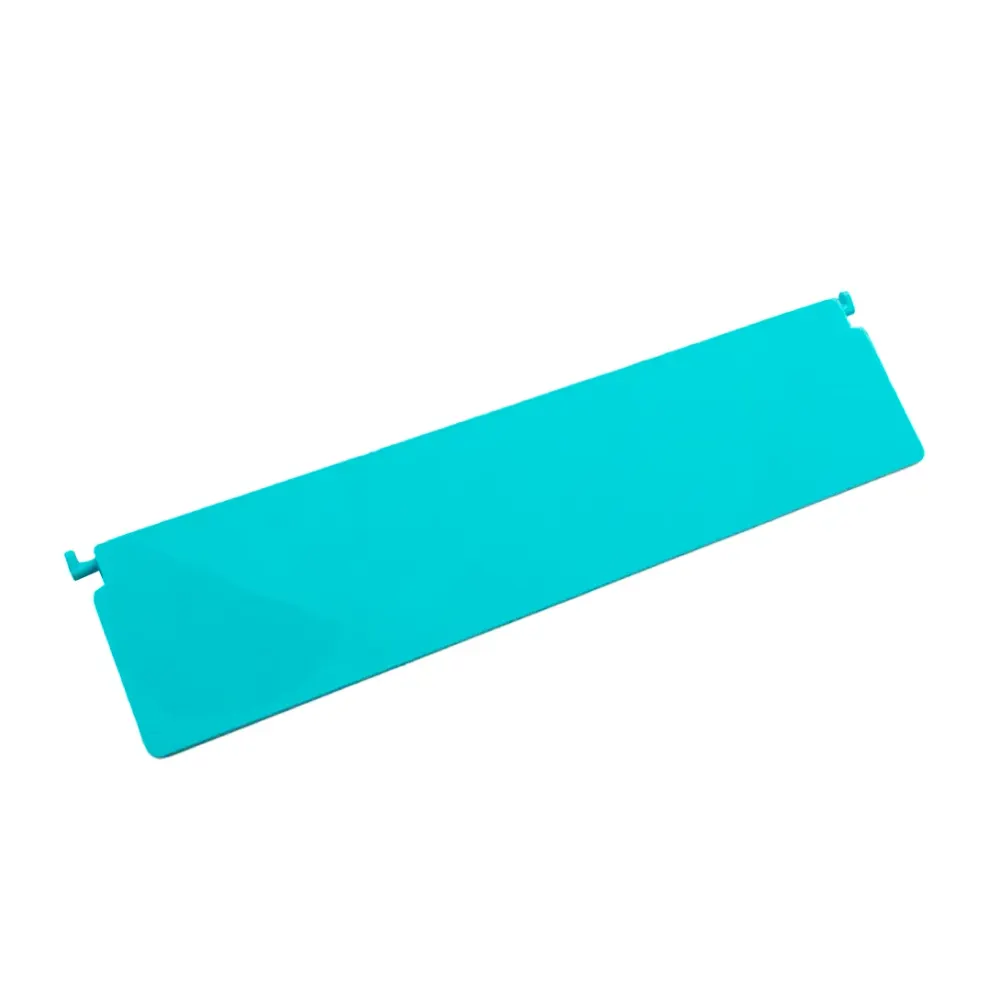
Non-return flap is stuck or has been incorrectly installed.
Filter tray is full.
What to do
Check if the non-return flap of the filter tray is connected properly. See the illustration below.
Empty the filter tray and wash it with a stream of water.
A paddle wheel often jams when moving. Red alert indicator.
Likely cause
Hair or another object is wrapped around the shaft, reducing the strength of the wheel.
Filter tray is full.
Low strength of motors.
What to do
Remove unwanted hair or other object.
Empty the filter tray and rinse it.
When moving, the front of the robot dives more, the collection wheel makes a "slapping" sound.
Likely cause
Filter tray is full.
The robot is pulled by a strong stream of water from the filter pump, or a strong wind is blowing.
The non-return flap is stuck or has been incorrectly installed.
Water's gotten into the robot.
What to do
Empty the filter tray and rinse it.
Short-term instability. This will fix itself when the abnormal situation changes.
Check if the non-return flap of the filter tray is connected properly. See the illustration below.
Contact Customer Care: Maytronics customer care
APP cannot find or connect to the robot.
Likely cause
Robot is turned OFF.
Battery is not charged.
Large distance or obstacles between the smartphone and the robot.
Robot is currently connected to another smartphone.
What to do
Press the power button until the light turns on.
Connect to the external charger.
Move your smartphone closer to the robot.
Robot can only be connected to one smartphone at a time. Close the app of the other smartphone.
Solar panel is covered by plaque (limescale).
Likely cause
Your local water has a high level of calcium (hardwater). Calcium is deposited on surfaces and accumulates into plaque.
What to do
Clean gently with lemon juice or diluted citric acid or vinegar.
Prevent future buildup by rinsing less frequently or towel drying. Also, you can balance your pool’s pH with a water test strip and adding pool-grade acid accordingly.
Replacement parts
3 genuine parts that fit the Skimmi.
Worn filters, brushes and tracks cause most of the problems above. These are the parts Maytronics lists for model 9997001; each one opens with what it does and when to replace it.
If the checks above did not fix it, the robot may need a repair. Under warranty, Maytronics handles power supplies by replacement and robots through its repair centers; have the serial number from the label under the handle ready.