









Warranty

Poolbots Warranty Information
At Poolbots, we want you to have complete confidence in your purchase. All warranties for products purchased through Poolbots are provided directly by the manufacturer. This means your warranty coverage, claim process, and any repairs or replacements will be handled by the brand that made your product.
We've made it simple to find the right warranty information for your product. Just click on your brand below to start a claim or register your product.
Warranty Options by Brand


Aquabot
Register your product for warranty services
Submit Claim →
Polaris
Access Polaris warranty information and support
Submit Claim →
Blue Helix One
Register your Blue Helix One warranty
Submit Claim →Important Notes
Coverage & Terms
Warranty coverage length, conditions, and limitations vary by manufacturer. Please review the terms provided on the manufacturer's website for your specific product.
Proof of Purchase
Most manufacturers require a valid sales receipt or proof of purchase for warranty claims.
Repairs & Replacements
All repair work, parts, or product replacements under warranty are completed by the manufacturer, not Poolbots.
Shipping Costs
Depending on the warranty terms, you may be responsible for shipping the product to the manufacturer.
Need Help?
If you're unsure which brand your cleaner or pool product belongs to, or if you need help locating your receipt, contact our customer support team — we'll point you in the right direction.
Maytronics: Dolphin and Niya
The Dolphin warranty, in plain words.
A Maytronics manufacturer warranty covers defects in materials and workmanship on the robot and its power supply (the battery and charger on a cordless model) for the term printed on the warranty card: one to three years depending on the model, listed below. The full conditions are in each robot's user manual; these are the points owners ask about.
Every new Dolphin from Poolbots is sold as an authorized Maytronics dealer with the full manufacturer warranty, free shipping and a 30-day trial with no restocking fee.
Register and find the serial number
Register once, claim faster later.
Registration is free at Maytronics' portal and puts the robot's details on file, so a warranty claim is verified in minutes and the registration doubles as proof of ownership.
Find the serial number
It is printed on the white label on the outside of the box, on the warranty card, and on the barcode label on the robot itself: under the handle or inside the filter compartment on most Dolphins. Each model's warranty page says where to look on that robot.
Have the receipt ready
Proof of purchase from an authorized dealer sets the warranty start date. A photo of the receipt or the order confirmation email is fine.
Register online
Go to registration.maytronics.com, enter the serial number and your details, and upload the receipt if a rebate is also being claimed.
If something fails
How a Maytronics warranty claim works.
Maytronics asks every owner to troubleshoot before a repair, because most calls are a clogged filter, a blocked impeller or the power supply. Then the path depends on where the robot was bought.
Rule out the simple causes
Work through the troubleshooting guide for your model: power supply (or charging, on a cordless robot) first, then the impeller, tracks and filters.
Power supply only?
If the supply will not stay on with the blue cable disconnected, Maytronics replaces the supply under warranty through its self-service claim, with no need to ship the robot. A cordless robot's charger or battery is handled the same way.
Bought from Poolbots
or call (888)-615-5728. We confirm the fault with you and point you to Maytronics' repair process so the claim goes through the first time.
Bought elsewhere
Contact the dealer first; many service Dolphins in store. Online purchases use Maytronics' self-service tool to open a repair request; robots go to a regional Master Service Center.
From Maytronics support
Warranty questions, answered.
How long is the warranty on my Dolphin?
Short answer: Dolphin warranties typically last 12 to 36 months, depending on the model. Check your robot's product page for its exact warranty period.
Dolphin warranty coverage typically lasts 12 to 36 months, depending on your model. Check your robot's product page to confirm the exact warranty length.
You can also register your robot on the Maytronics registration website to receive warranty information specific to your model.
For help confirming your warranty, contact Poolbots' pool experts through live chat or by phone. Keep your robot's serial number and proof of purchase handy.
Why should I register my robot?
Short answer: Registering your Dolphin helps speed up warranty service and creates an official ownership record for loss, theft, or warranty claims.
Registering your Dolphin takes a few minutes and helps you get service and support when you need it.
- Faster warranty service: Keeping your robot’s details on file helps speed up warranty verification and service when you need assistance or repairs.
- Proof of ownership: Registration creates an official record that you own your robot. This can help if it is lost or stolen, or when you file a warranty claim.
How do I register my Dolphin's warranty?Video
Short answer: Register your Dolphin through Maytronics' online portal using your robot's serial number and proof of purchase.
Use the Maytronics registration portal at warranty details to register your Dolphin and submit a rebate request.
Have your robot's serial number and proof of purchase ready before you start.
Find your serial number
Your Dolphin's serial number has 10 characters. You can find it in any of these locations:
- The white label on the outside of the box.
- Your warranty card.
- The white barcode label on the Dolphin's inside casing.
Register your Dolphin
-
Step 1Open the registration portal
Visit warranty details.
-
Step 2Enter the serial number
Type your robot's serial number in the first field. For help finding it, select the “i” icon beside “Where do I find my robot’s serial number?”.
-
Step 3Choose your previous cleaning method
Select how you cleaned your pool before getting your Dolphin. Then select “Continue.”
-
Step 4Add your personal information
Fill in your details. When you start typing your country or state, choose the correct entry from the dropdown list. Select “Continue” when you are done.
-
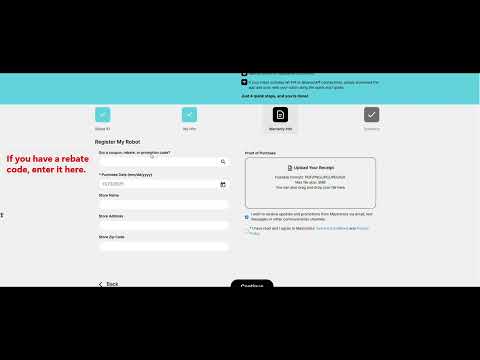
Step 5Add promotion and purchase details
Enter your rebate or promotion code in the first field, if you have one. Otherwise, leave that field empty. Select your purchase date. You can also provide the store name, address, and ZIP code.
-
Step 6Upload your proof of purchase
Select “Upload Your Receipt.” An original receipt or original invoice is preferred. It must include the purchase date, product, and price.
If you cannot find the original receipt, you can use a credit card or bank statement instead. Leave only the date, merchant/product, and amount visible. Hide or remove personal information before uploading it.
-
Step 7Accept the terms
Agree to the Terms & Conditions, then select “Continue.”
-
Step 8Review and submit
Check the information you entered, then select “Submit” to finish registering your Dolphin.
Check your warranty length
Warranty length depends on your model and region. Check your model's product page for its warranty length. Poolbots' pool experts can help by live chat or phone if you need clarification.
Watch the registration walkthrough
This video covers robot registration and rebate request submission.
Start a warranty repair claim
For a Dolphin repair or power supply replacement, use Maytronics' self-service tool to submit a warranty claim, also called an RMA (Return Merchandise Authorization).
If you need help, contact Poolbots' pool experts by live chat or phone. For warranty repairs, Poolbots will point you to Maytronics' service process.
Applicable models
- Dolphin Wave 120
- Dolphin Wave 100
- Dolphin Sigma
- Dolphin M400
- Dolphin Wave 60
- Dolphin Oasis Z5i
- Dolphin Wave 80
- Dolphin Nautilus CC Supreme
- Dolphin Explorer E40
- Dolphin ADVANTAGE
- Dolphin Nautilus CC
- Dolphin Proteus DX3
- Dolphin Echo
- Dolphin S100
- Dolphin Nautilus AG
- Dolphin Premium 10
- Dolphin T15
- Dolphin Cayman
- Dolphin Premium 20
- Dolphin T25
- Dolphin Active 10
- Dolphin S50
- Dolphin Active Solo
- Dolphin Active 15
- Dolphin Escape
- Dolphin ADVANTAGE ULTRA
- Dolphin S200
- Dolphin Quantum
- Dolphin Active 20
- Dolphin ADVANTAGE PRO
- Dolphin Proteus DX4
- Dolphin Nautilus CC Pro
- Dolphin Proteus DX5i
- Dolphin S300
- Dolphin Active 30
- Dolphin Premium 30
- Dolphin T35
- Dolphin Premium 40
- Dolphin T45
- Dolphin Explorer E30 WiFi
- Dolphin T55i
- Dolphin S400
- Dolphin Active 40
- Dolphin Explorer E50
- Dolphin Premier
- Dolphin Nautilus CC Plus
- Dolphin Explorer E25
- Dolphin Nautilus CC Plus WiFi
- Dolphin Nautilus Titan
- Dolphin M550
- Dolphin Premium 60
- Dolphin M600
- Dolphin T60
- Dolphin Explorer E70
- Dolphin W20
- Dolphin Wave 300 XL
- Dolphin Wave 140
- Dolphin Wave 200 XL
- Dolphin Liberty 200
- Dolphin Liberty 300
- Dolphin Liberty 400
Where do I find the serial number of my Maytronics cleaner?
Short answer: Your Dolphin robot’s 10-digit serial number is on a white sticker inside the robot, accessible after you remove the filters.
Your Dolphin robot has a 10-digit serial number printed on a white sticker inside. Follow the steps for your robot’s filter opening.
For a filter opening on the bottom
- Step 1: Remove the filters Turn your Dolphin over so the bottom faces up, then take out the filter or filters.
- Step 2: Find the serial number Locate the white sticker inside the robot and read the serial number printed on it.
For a filter opening on the top
- Step 1: Remove the filters Lift the top lid, then take out the filter or filters.
- Step 2: Find the serial number Locate the white sticker inside the robot and read the serial number printed on it.

If the registration process rejects your serial number, check that you entered each character correctly.
Skimmi™ owners: Where do I find my Skimmi serial number? for serial number instructions.
My Dolphin is not working. Where can I send it for repair?
Short answer: After troubleshooting, you can ship your Dolphin to a Maytronics Master Service Center or take it there for repair.
Maytronics operates regional Master Service Centers throughout North America. Locations include Georgia, Arizona, California, Pennsylvania, Illinois, and Canada.
-
Step 1Start with troubleshooting
Before arranging a repair, use Maytronics' self-service tool to identify the problem. run the power supply checks to open the tool. You can also complete a warranty claim, or RMA (Return Merchandise Authorization), for a Dolphin repair or power supply replacement.
-
Step 2Choose your service path
- Purchased from a local dealer: Repair options depend on whether that dealer offers repairs. Chat with Poolbots' pool experts for help understanding your options. Maytronics' Dealer Locator lists nearby Dolphin retailers.
- Purchased online, or your local dealer does not offer repairs: Use the self-service tool run the power supply checks to troubleshoot and begin a warranty claim for repair or power supply replacement.
Poolbots' pool experts are available by live chat or phone. For warranty repairs, Poolbots will point you to Maytronics' service process.
-
Step 3Arrange mail-in or in-person repair
If troubleshooting shows that your Dolphin needs repair, you can ship it to a Master Service Center using any carrier you choose. You can also take it to the nearest Master Service Center.
Begin your warranty claim run the power supply checks.
Can I order replacement parts for my Dolphin and replace them myself?
Short answer: You can order Dolphin replacement parts from Poolbots, but check warranty restrictions before replacing parts yourself.
Yes. You can buy replacement parts for your Dolphin from Poolbots, an authorized Maytronics dealer. Some parts can be replaced yourself.
Have your Dolphin's serial number ready. It is needed to identify parts that fit your model. For help choosing a part, chat with Poolbots' pool experts.
The DIY Repairs section provides step-by-step guidance for replacing parts.
Check your warranty before starting. Attempting to replace certain parts yourself can void an active warranty. Those DIY repairs are not recommended while your robot is under warranty.
If your power supply has stopped working and your robot is under warranty, use the self-service form to request a replacement power supply through a warranty claim (RMA). For warranty repair guidance, chat with Poolbots' pool experts. Poolbots will point you to Maytronics' service process.
Dolphin and Niya robots
Warranty by model.
Every Maytronics robot has its own warranty page: the term from its spec sheet, what it covers on that model, its wear parts, where the serial number is and what to do before a claim. Pick your model, or find it in the list.
ProLine & Max-Series
Proteus & Oasis
Nautilus
Explorer
Active, Echo & Advantage
S-Series & M-Series
Premium & T-Series
Liberty Cordless
EON Cordless
Wave Commercial
Skimmi
Niya
Terms are the manufacturer's, as printed on each model's spec sheet; the warranty card in the box is final. Open-box and refurbished robots sold by Poolbots carry the term stated on their product page.

