














Support answer · Maytronics One App
How do I install the DebrisLock filter and set up backwash?
Short answer: Follow the installation video, then enable backwash in the MaytronicsOne app. Turn backwash off when switching to a non-DebrisLock™ filter.
Based on Maytronics support, updated 2026-07-20, rewritten by Poolbots' pool experts. Parts that fix it are below.
The answer
What to know.
Step 1Install the DebrisLock™ filter
Follow the video below for installation instructions.

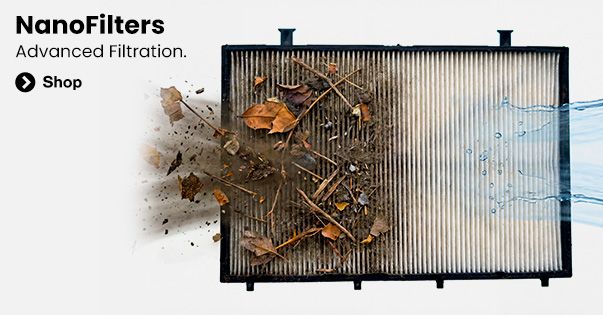
The patented DebrisLock™ filter offers 14 micron filtration and uses backwash technology. It is available to purchase as a filtration upgrade for EON™ 100.
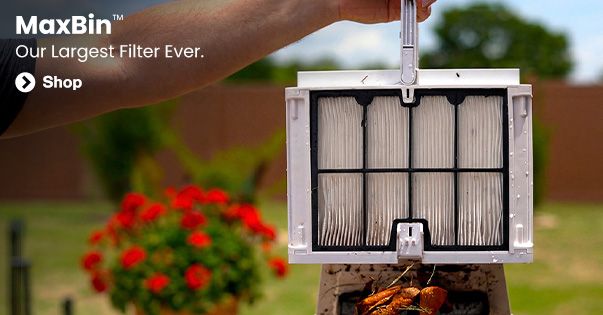
DebrisLock™ filter basket details
Step 2Enable backwash in the MaytronicsOne app
When you upgrade to the DebrisLock™ filter, you must activate backwash in the app.
- Open Settings using the three dots in the top-right corner, then select Filter Type.
- Turn on Activate Backwash. The switch turns blue when backwash is enabled.
Switching to a non-DebrisLock™ filter
If you change to a non-DebrisLock™ filter, deactivate backwash in the MaytronicsOne app.
- Open Settings using the three dots in the top-right corner, then select Filter Type.
- Turn off Activate Backwash. Check that the switch is gray.
- Select Change to Non-DebrisLock filter, then select Confirm.
Source: Maytronics support. Same steps and facts, rewritten for clarity; the videos and illustrations are Maytronics' own.
Replacement parts
Parts that fix this.
This answer comes down to filters. The exact part depends on the model: choose your robot and we open its parts list, or browse the category for every model.
Browse by category:Filters All genuine Dolphin parts →
Still need help?

