
























Support answer · Maytronics One App
How do I set UltraRun on the EON 100/120d?
Short answer: With the charger disconnected, select UltraRun in the MaytronicsOne App or on the robot, preferably with a full battery.
Based on Maytronics support, updated 2026-06-07, rewritten by Poolbots' pool experts. Applies to 1 model.
The answer
What to know.
We recommend a fully charged battery before starting UltraRun™. You can select this mode through the MaytronicsOne App or directly on the robot's controls.
Set UltraRun™ in the MaytronicsOne App
- Step 1: Prepare the robot. Make sure it is connected to Wi-Fi, out of the water, and disconnected from the charger.
- Step 2: Open the cleaning modes. On the app's home screen, tap the arrow beside the cleaning mode.
- Step 3: Choose your settings. Under UltraRun, select the cycle plan and scan pattern you want.
Set UltraRun™ on the robot
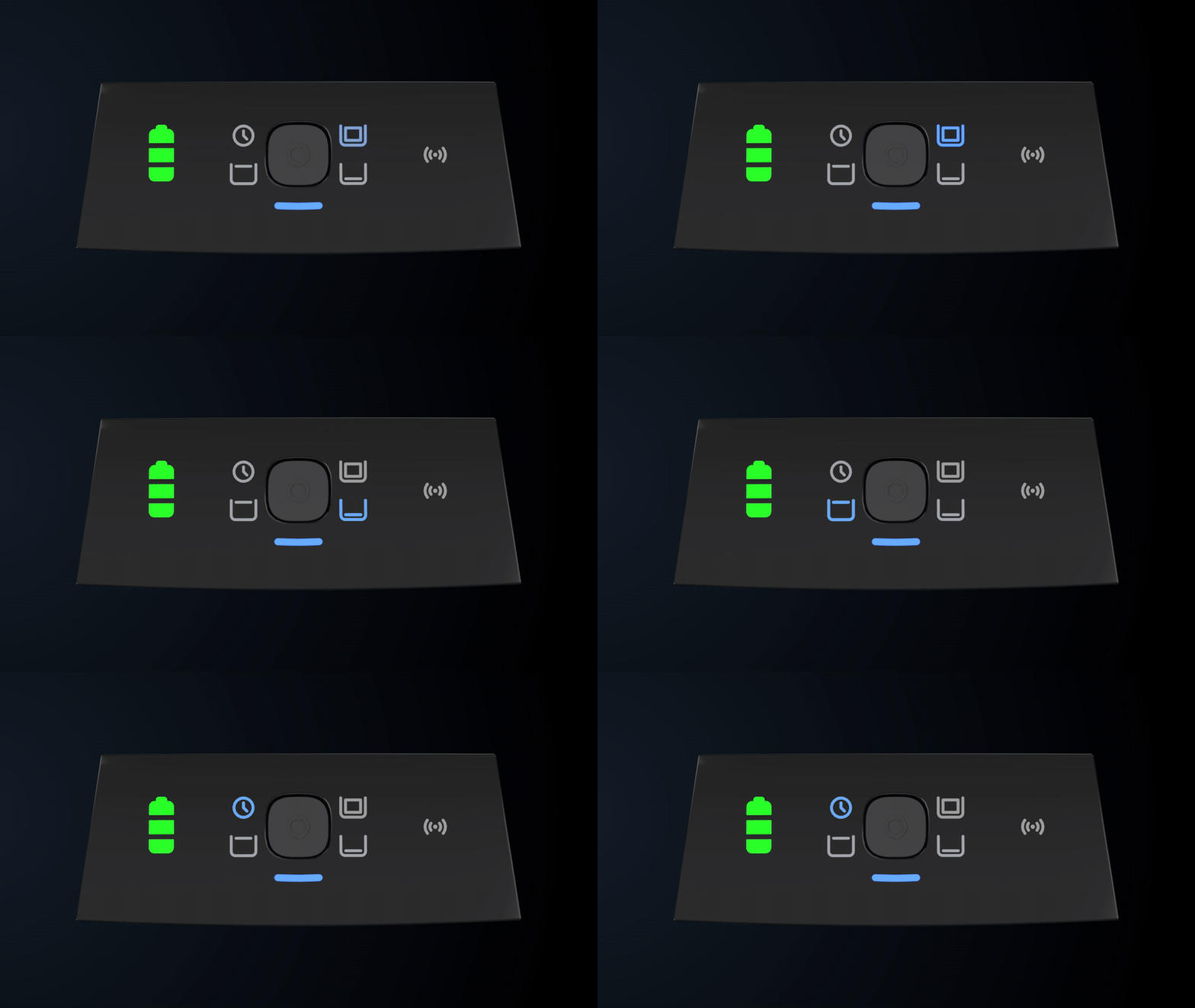
- Step 1: Power on the robot. Turn it on with the charger disconnected.
- Step 2: Select UltraRun™. Press the power button until the LED at the UltraRun™ mode icon comes on.
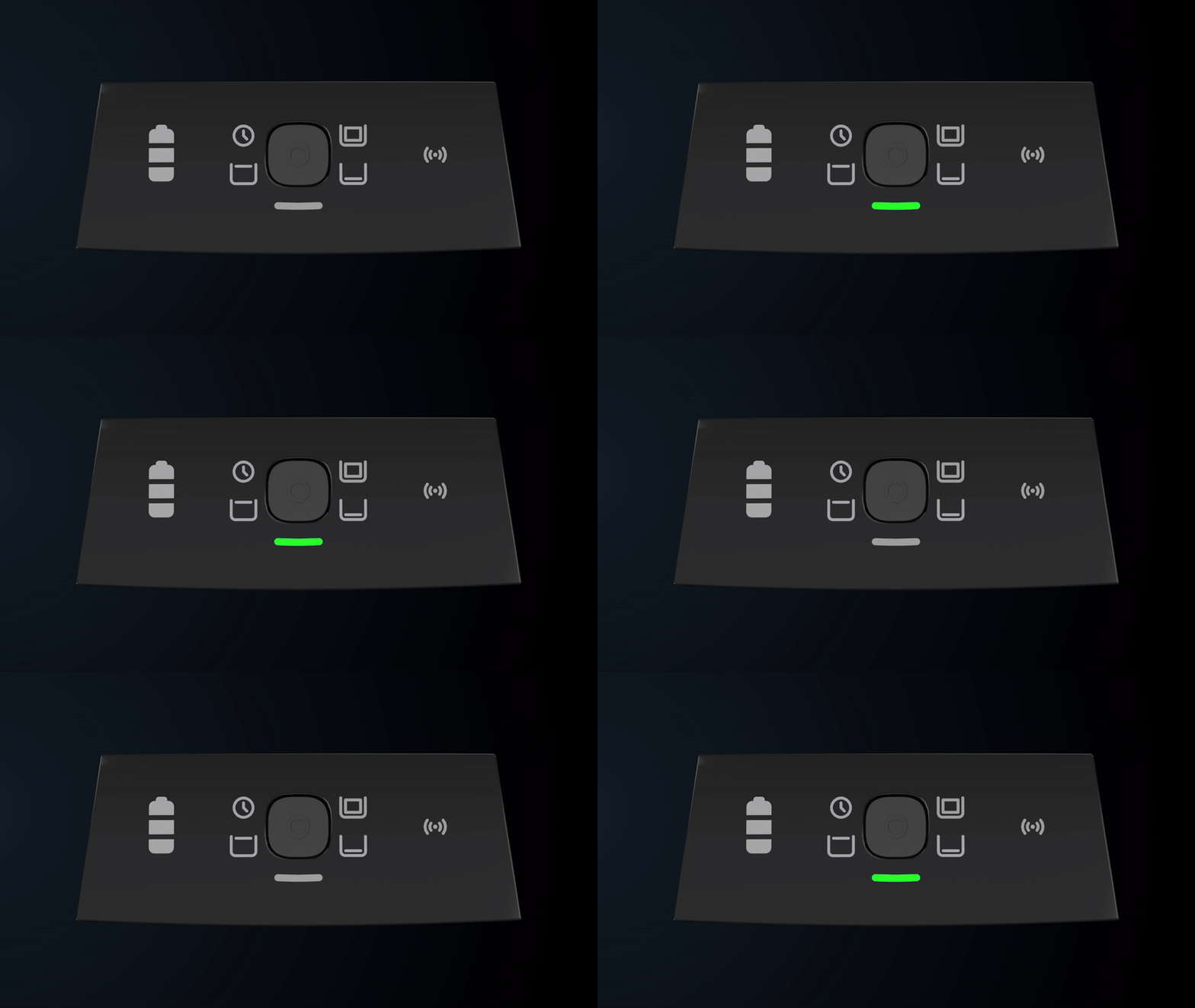
A flashing green power button LED means the robot is in standby between UltraRun™ cleaning cycles.
EON™ 100 UltraRun™ cycle options
| Schedule length | Cleaning mode | Scheduled cycles | Time per cycle |
|---|---|---|---|
| 1/2 Week | Full Coverage | 2, every 48 hours | 60 minutes |
| 1 Week (Default) | Full Coverage | 3, every 48 hours | 45 minutes |
| 1 Week | Floor Only | 3, every 48 hours | 45 minutes |
EON™ 120d UltraRun™ cycle options
| Schedule length | Cleaning mode | Scheduled cycles | Time per cycle |
|---|---|---|---|
| 1.5 Weeks | Full Coverage | 4, every 48 hours | 60 minutes |
| 2.5 Weeks | Full Coverage | 6, every 72 hours | 40 minutes |
| 2.5 Weeks | Floor Only | 6, every 72 hours | 40 minutes |
Charging, Homing, and Clicker notes
- After an UltraRun cleaning session ends and the robot finishes charging, you must program the UltraRun schedule again.
- UltraRun cannot be set while the robot is plugged in and charging.
- If Homing is set between UltraRun™ cycles, the robot waits at the selected wall after the cleaning cycle ends.
- Using the Clicker during UltraRun™ cancels upcoming scheduled cycles.
Source: Maytronics support. Same steps and facts, rewritten for clarity; the videos and illustrations are Maytronics' own.
By model
This answer on your robot.
Maytronics tags this answer for the 1 model below.
Still need help?

