
























Support answer · Maytronics One App
How do I set the cleaning modes on the EON 100/120d?
Short answer: Choose a cleaning mode with the robot's power button or the MaytronicsOne app while the robot is disconnected from the charger.
Based on Maytronics support, updated 2026-06-07, rewritten by Poolbots' pool experts. Applies to 1 model. Parts that fix it are below.
The answer
What to know.
You can select a cleaning mode for your Dolphin EON 100 using the robot's controls or the MaytronicsOne app.
Set the cleaning mode on the robot
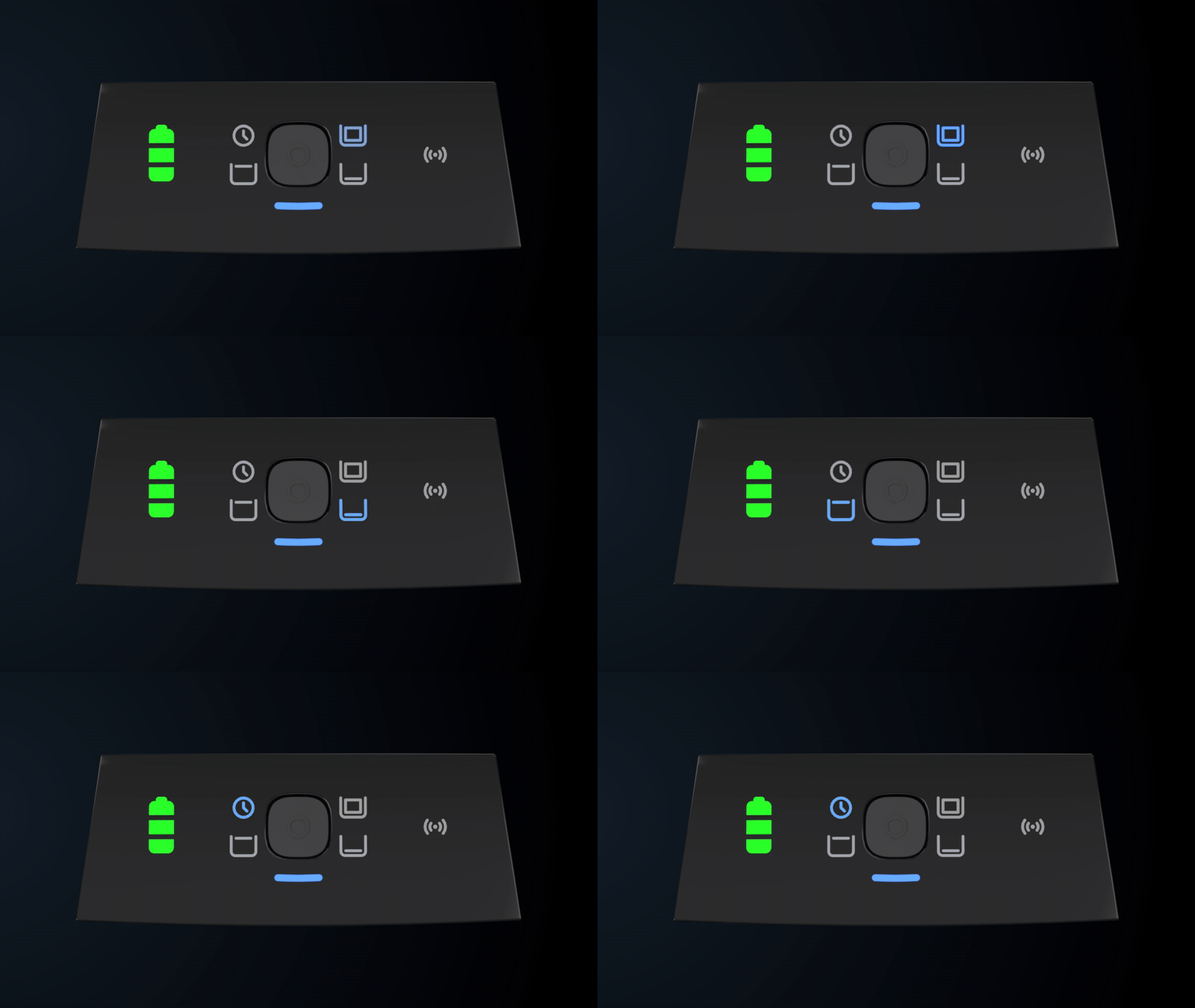
- Turn on the robot and confirm that it is disconnected from the charger.
- Press the power button repeatedly to move through the cleaning modes. Stop when you reach the mode you want.
- Look for a solid blue Status LED. This confirms that the mode is selected.
- Put the robot in the water.
- The Status LED will blink blue when the cleaning cycle starts.
Full Coverage is the default mode. It cleans the floor, walls, waterline, and steps. You can also select Floor Only, Waterline, or UltraRun™. The mode selected on the robot is saved for the next cleaning cycle.
Set the cleaning mode in the MaytronicsOne app

- Confirm that the robot is connected to Wi-Fi, out of the water, and disconnected from the charger.
- On the app's home screen, tap the arrow beside the cleaning mode.
- Choose your cleaning mode. For Full Coverage, UltraRun™, and Floor Only, you can also select a Scan Pattern and Duration.
Your last mode selection is saved, with one exception: UltraRun™ is not saved when selected through the app.
Source: Maytronics support. Same steps and facts, rewritten for clarity; the videos and illustrations are Maytronics' own.
Replacement parts
Parts that fix this.
This answer comes down to filters. The exact part depends on the model: choose your robot and we open its parts list, or browse the category for every model.
Browse by category:Filters All genuine Dolphin parts →
By model
This answer on your robot.
Maytronics tags this answer for the 1 model below.
Still need help?

