Premium & T-Series · Model 99996241-PR4 · Sold in pool stores
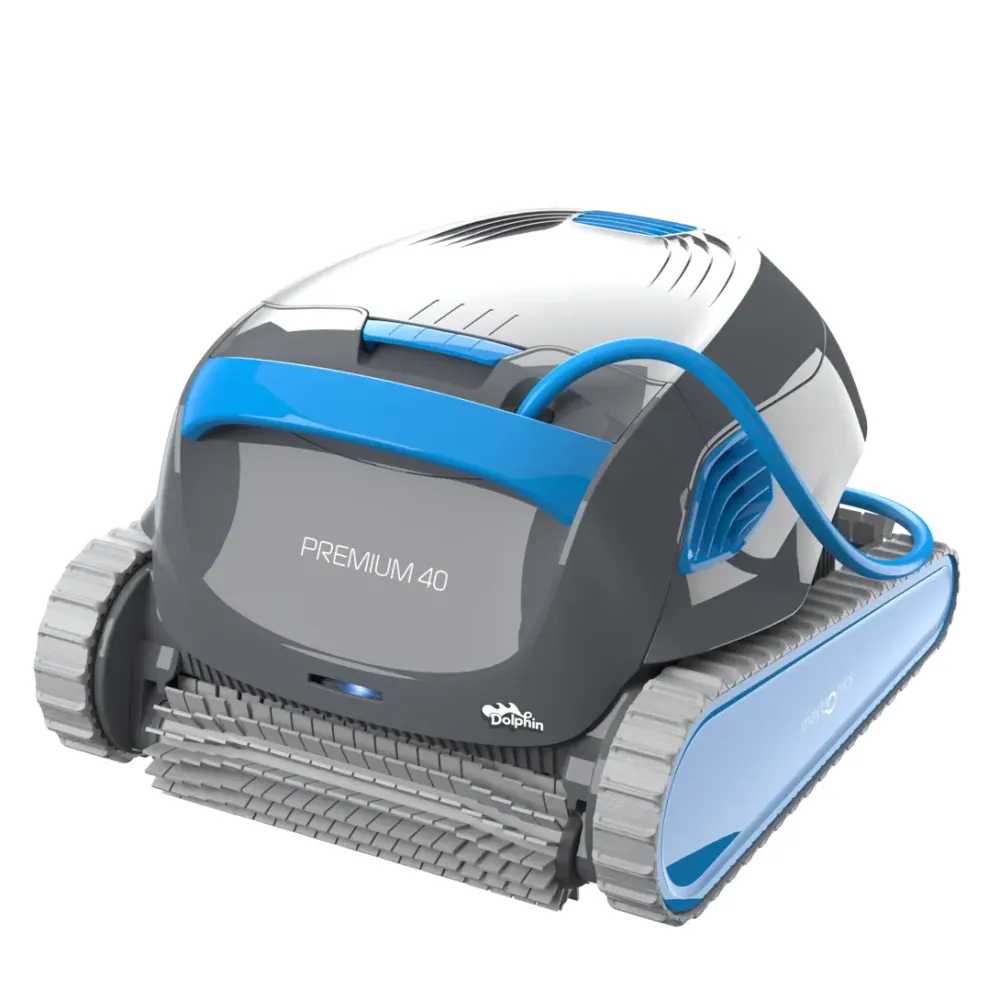
Dolphin Premium 40
Floor, wall, and waterline cleaning for in-ground pools up to 50 ft
The Dolphin Premium 40 is a corded Dolphin robot made by Maytronics for in-ground pools up to 50 ft long. It travels on tracks to clean the floor, climb walls, and scrub the waterline during its default two-hour cycle. An active brush loosens debris, while an extra-large, multi-layer basket collects it. A Fine Filter Kit is standard, and an Ultra-Fine Filter Kit also comes in the box.
18 compatible partsManual & guidesHow-to videos11 FAQs Warranty
MSRP $1,629 (listed as out of stock at Maytronics). Poolbots does not sell the Premium 40: it is a reference page for owners and shoppers. Compare the Dolphins we ship free.
- Pool size
- Up to 50 ft
- Cleans
- Floor, Walls and Waterline
- Pool type
- In Ground
- Cycle
- 2 Hours
- Warranty
- 2 years
- Filter
- Fine Filter Kit
- App
- MyDolphin™ Plus
- Weight
- 18.5 lb
What it does
Premium 40 at a glance.
MyDolphin™ Plus app control and a weekly timer suit owners who want scheduled cleaning. An anti-tangling swivel helps manage the cable, and the included caddy handles transport and storage. Maytronics lists this model as a pool-store exclusive. Poolbots does not sell the Dolphin Premium 40. This reference page provides specifications, parts, manuals, and troubleshooting for Maytronics model number 99996241-PR4.
Who it is for
The Dolphin Premium 40 suits owners of in-ground pools up to 50 ft long, including rectangular, round, free-form, and kidney shapes. It covers the floor, walls, and waterline. It is a good fit for owners who want app control, weekly scheduling, top-access filtration, and a caddy for moving and storing the robot.
Active scrubbing across the pool
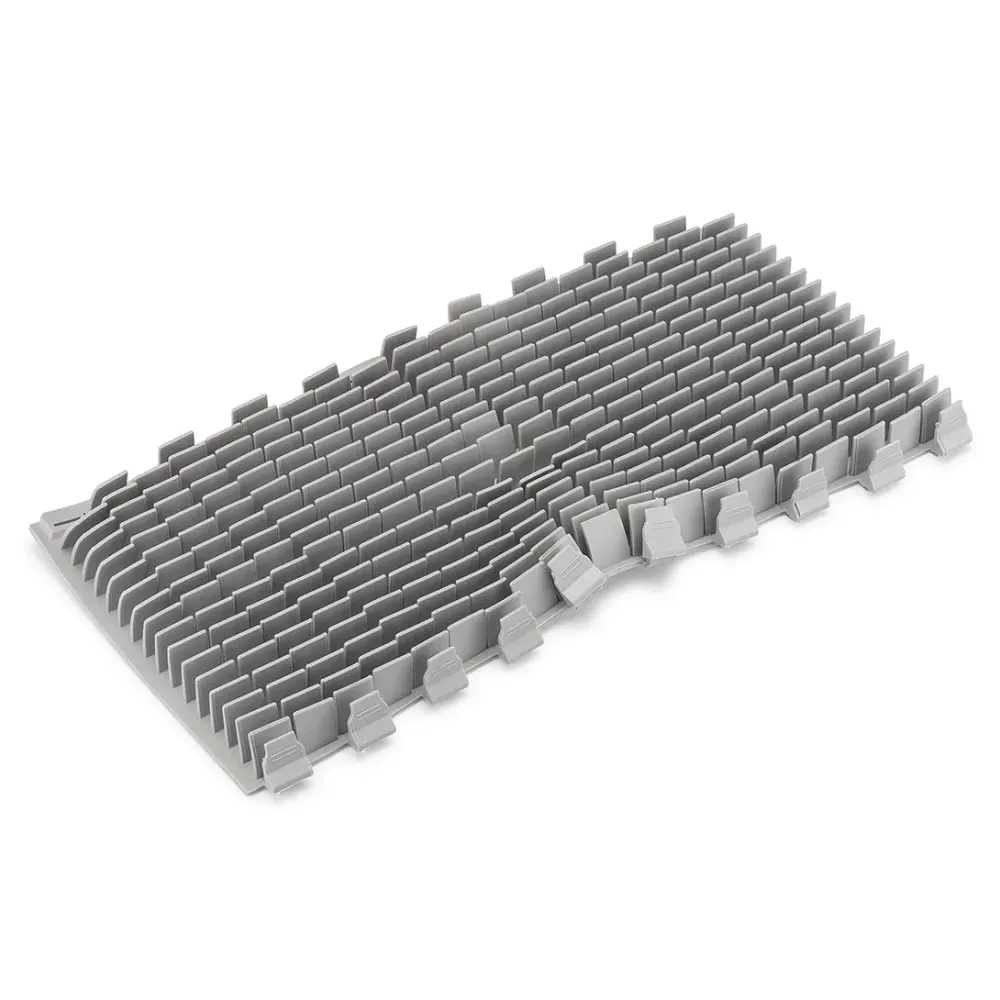
An active brush works on the pool surface as the robot cleans the floor, climbs walls, and scrubs the waterline.
Two filter options with top access
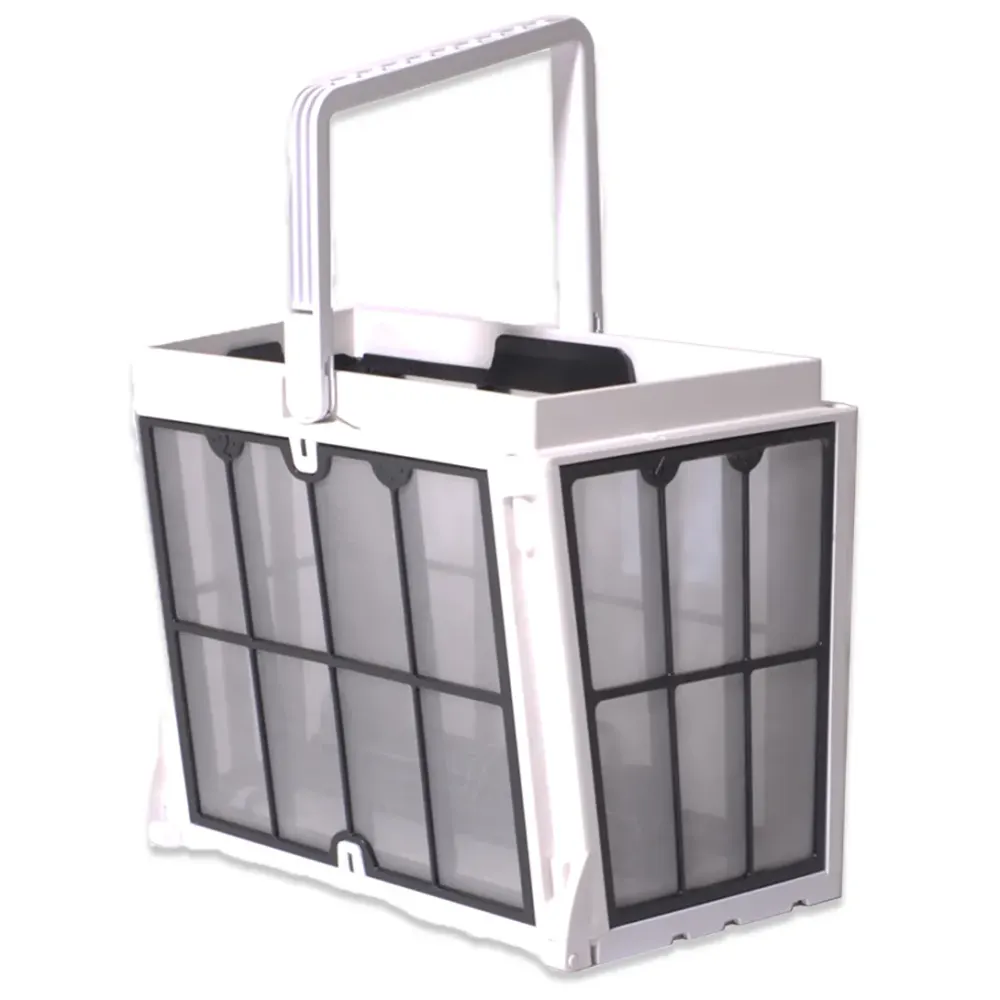
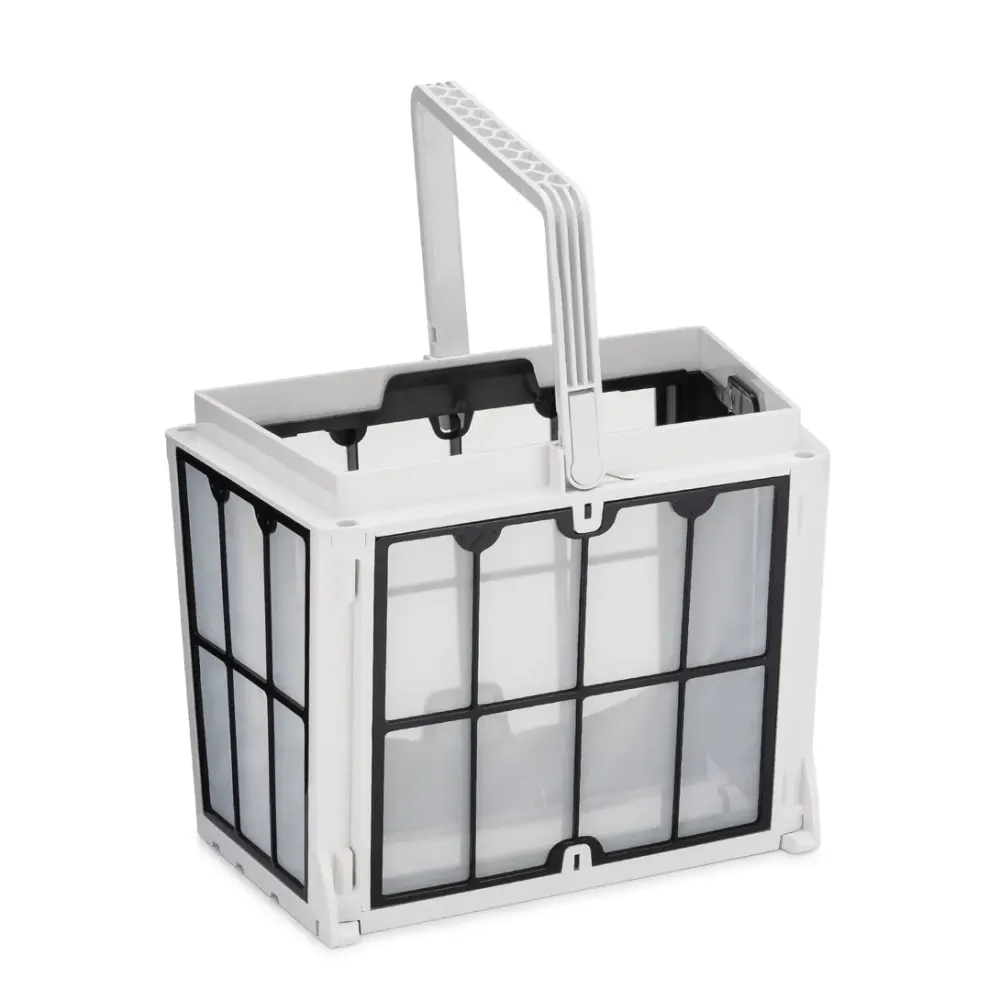
The extra-large basket lifts out from above for rinsing. A Fine Filter Kit is standard, with an Ultra-Fine Filter Kit also included.
App control and weekly scheduling
Manage the robot through MyDolphin™ Plus and use the weekly timer for routine cleaning.
Caddy included for moving and storage
The robot weighs about 18.5 lb. Its included caddy gives you a way to move and store it between cleanings.
Tech specs
Dolphin Premium 40 specifications.
As published by Maytronics for model 99996241-PR4 (UPC 810071220234).
Product Attributes
- Maximum Pool length
- 50 ft
- Cleaning Coverage
- Floor, Walls and Waterline
- Default Cycle Time
- 2 Hours
- Warranty (years)
- 2
- Delay Feature
- No
- Weekly Timer
- Yes
- Mobile Application
- MyDolphin™ Plus
- Caddy or Stand Included
- Caddy
- Anti Tangling Swivel
- Yes
- Additional Filter in the Box
- Ultra-Fine Filter Kit
- Filter Type
- Fine Filter Kit
Connectivity & Automation
- Automation Mode
- Yes
Size & Dimension
- Package Dimensions
- 23.7x19.4x19.0 inch
- Robot Weight
- 18.566 lb
- Net Height
- 13.886 inch
- Net Length
- 17.413 inch
- Net width
- 15.752 inch
Cleaning
- Filter Access
- Top Access
- Full Filter Indicator
- No
- Waterline Scrubbing
- Yes
- Enhanced Cleaning Cycles
- No
- Active Brush
- Yes
- Number of Brushes
- 2
- Brush Type
- Standard Brush
- Suction Rate
- 4000.0 gph
Pool Attributes
- Pool Shape
- Rectangular, Round, Free Shape, Kidney
- Pool Classification
- In Ground
Other
- Remote Control
- No
Replacement parts
18 genuine parts for the Premium 40.
Find genuine Maytronics fine and ultra-fine filter panels, front active and rear brushes, and gray tracks for the Dolphin Premium 40. Listed replacement parts also include its swivel cable and 120W 115V Wi-Fi power supply.
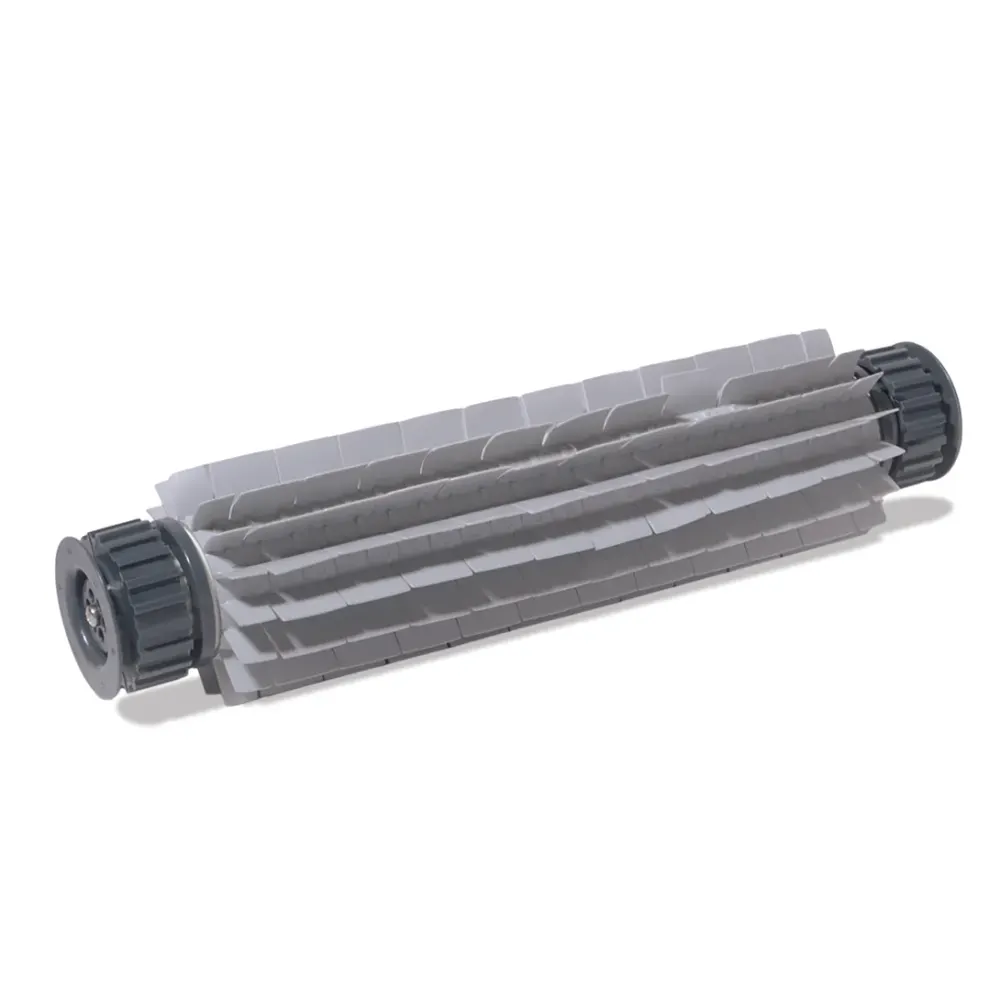
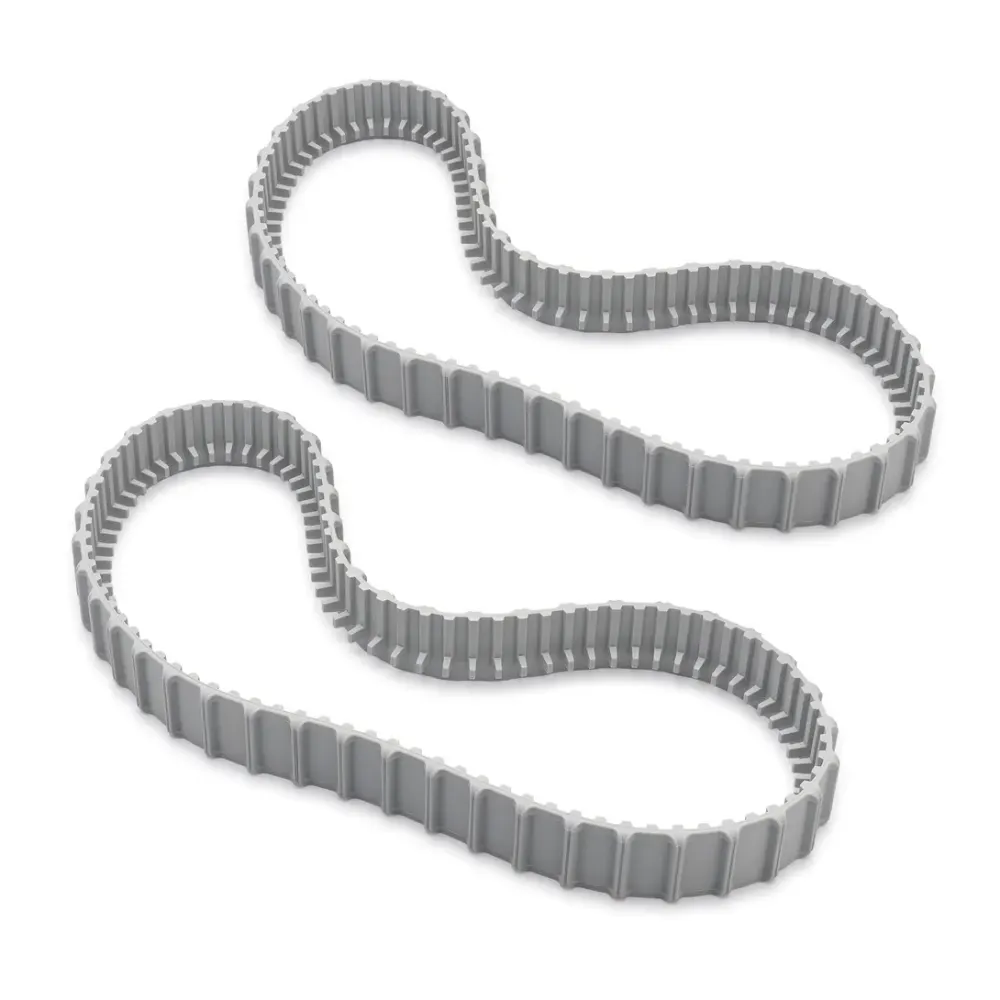
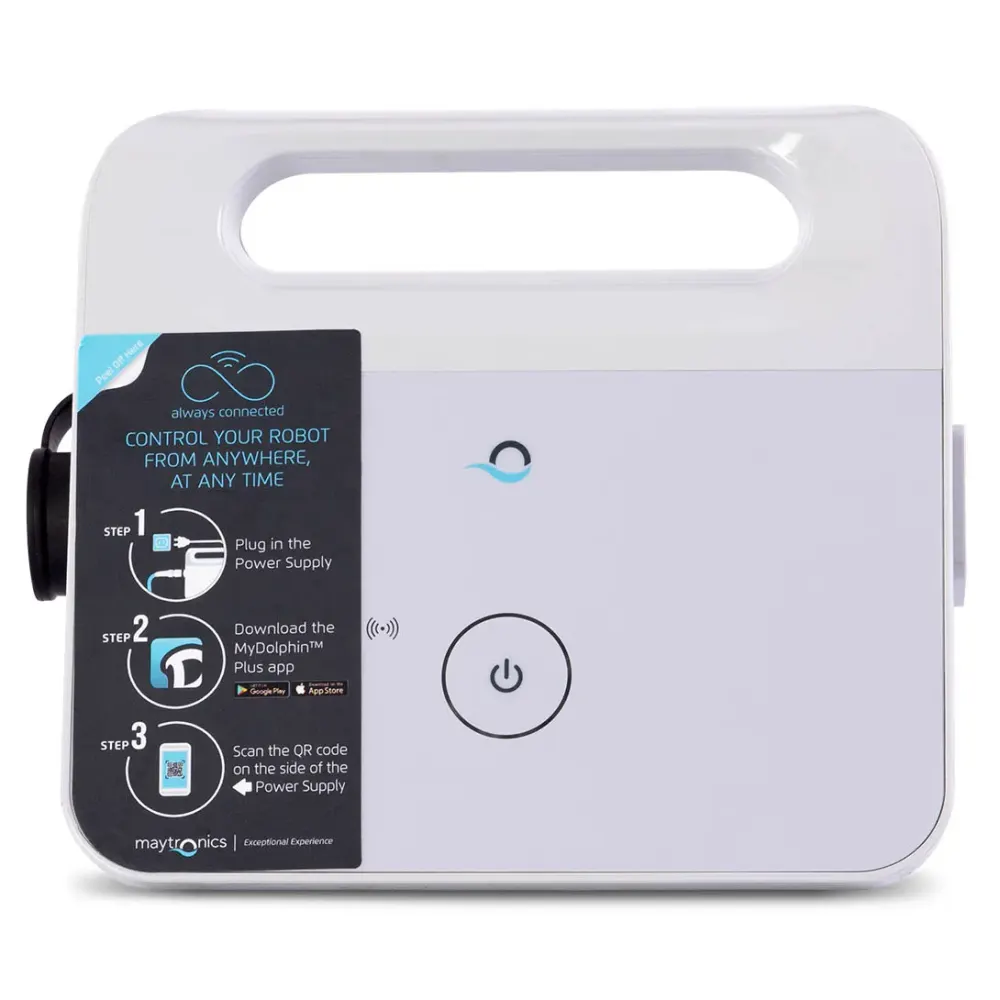
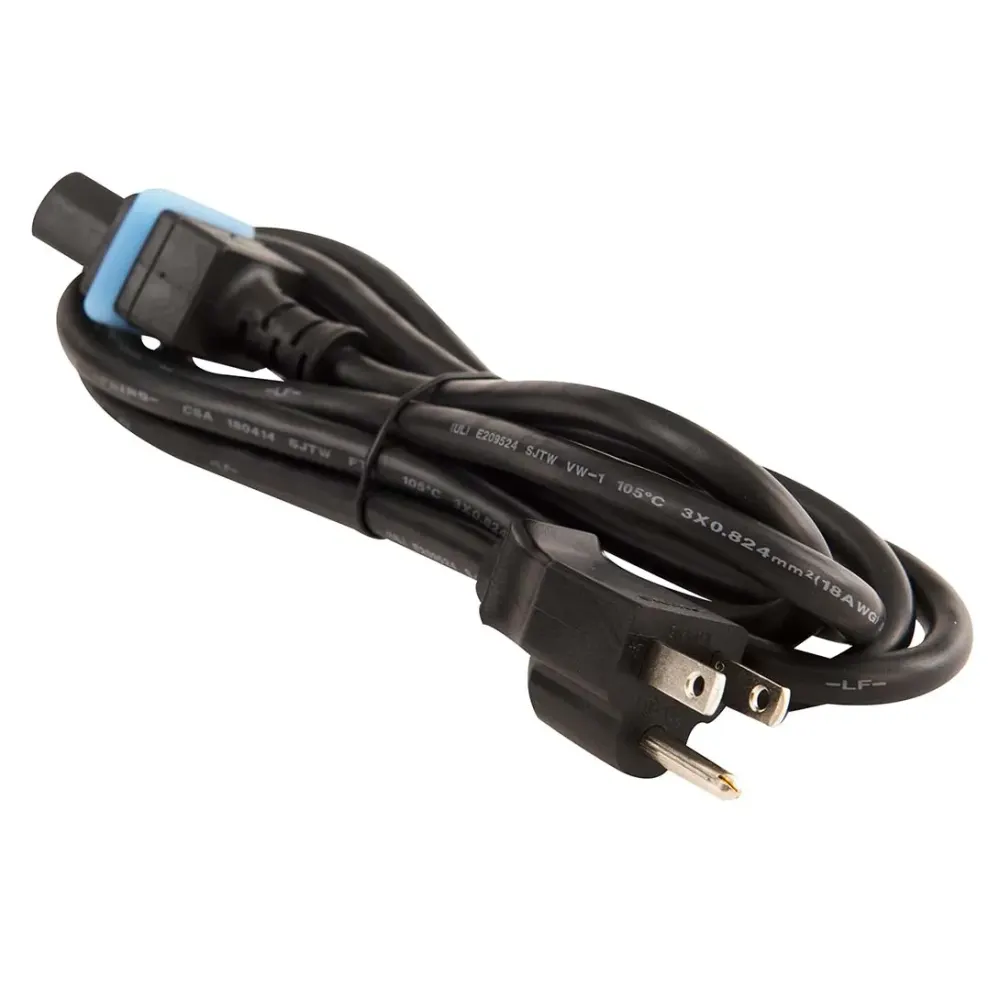
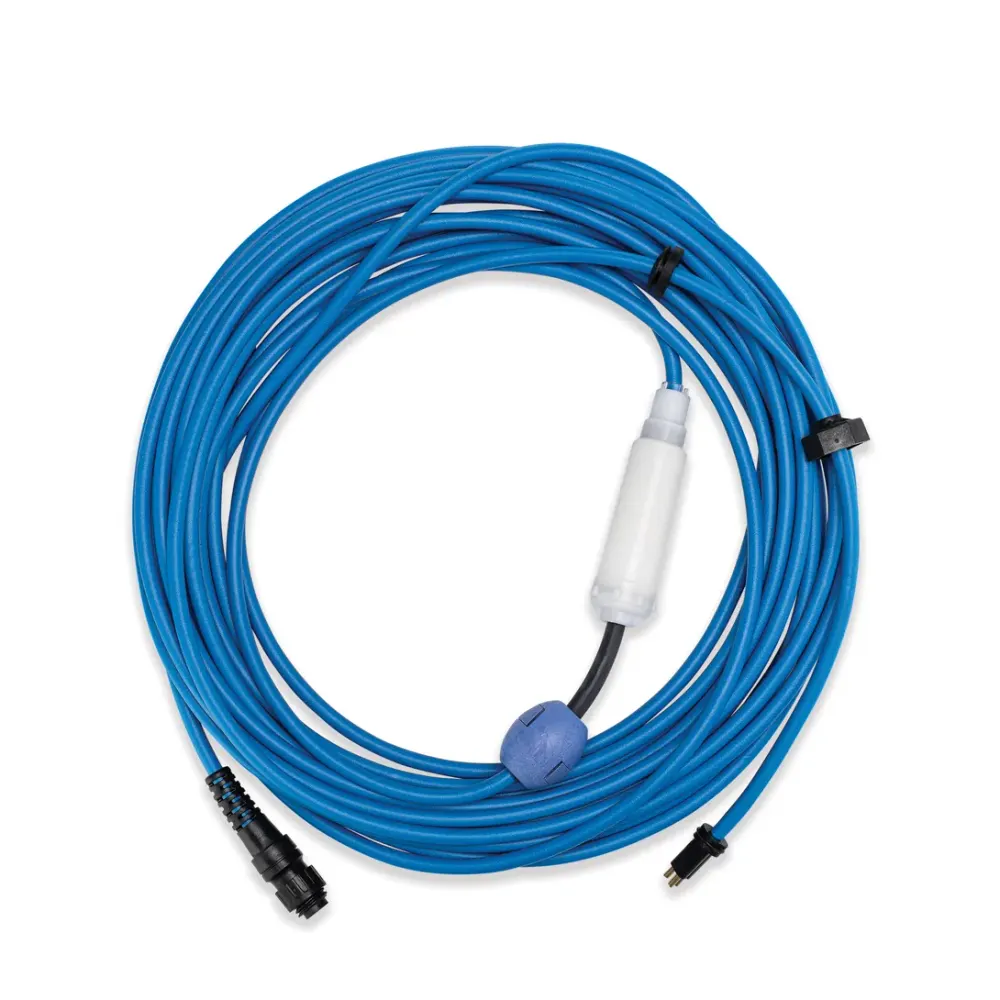
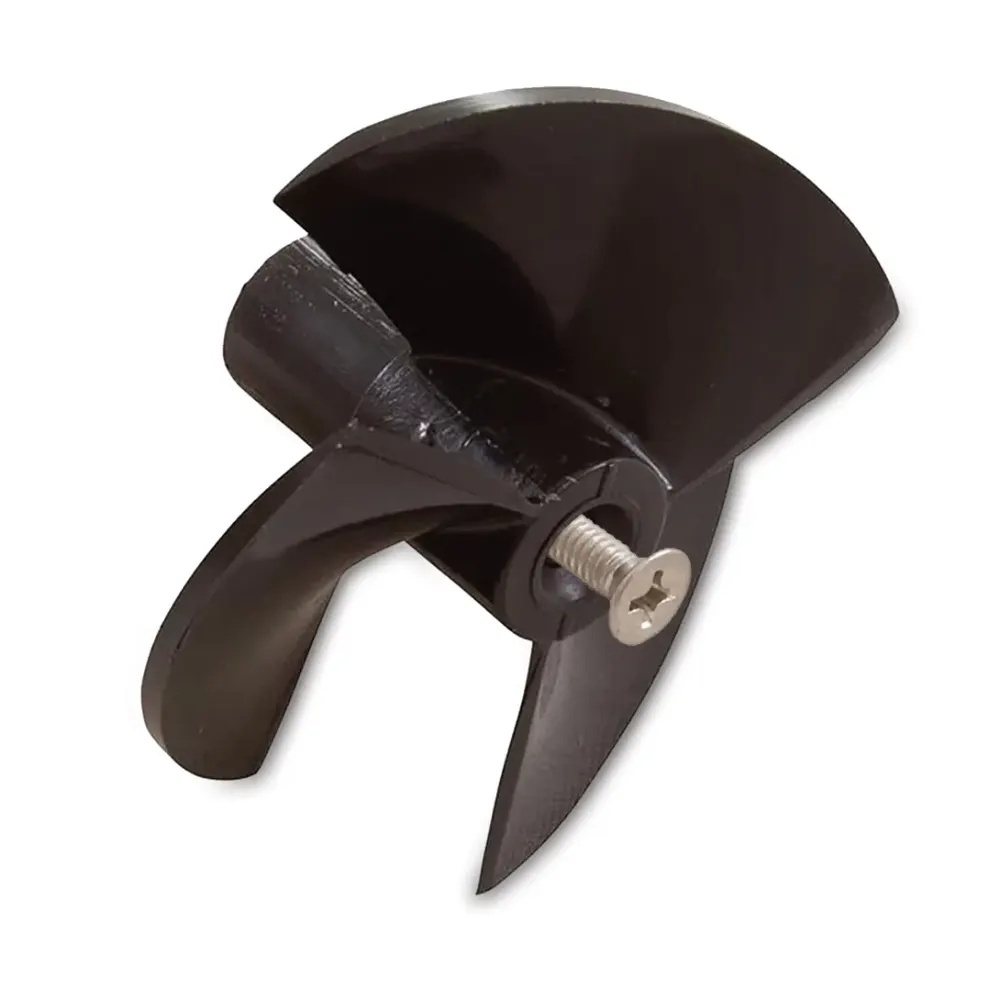
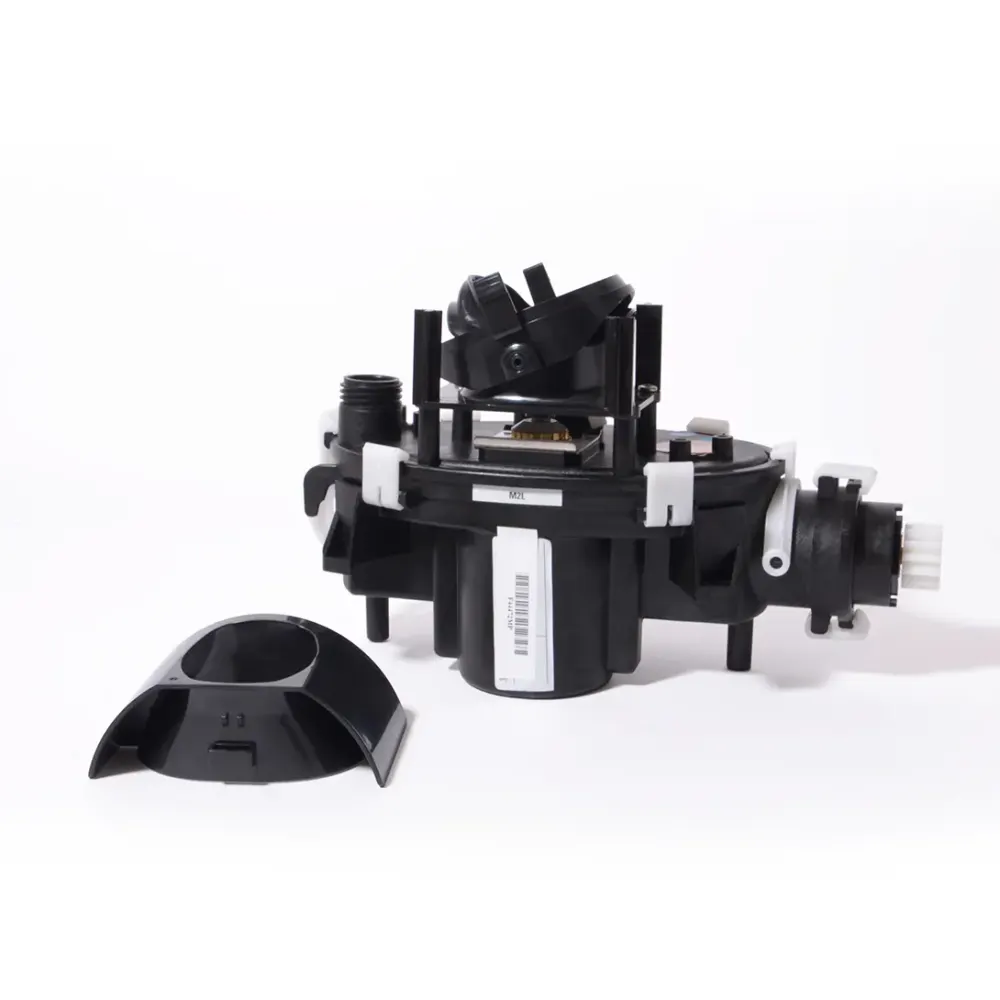
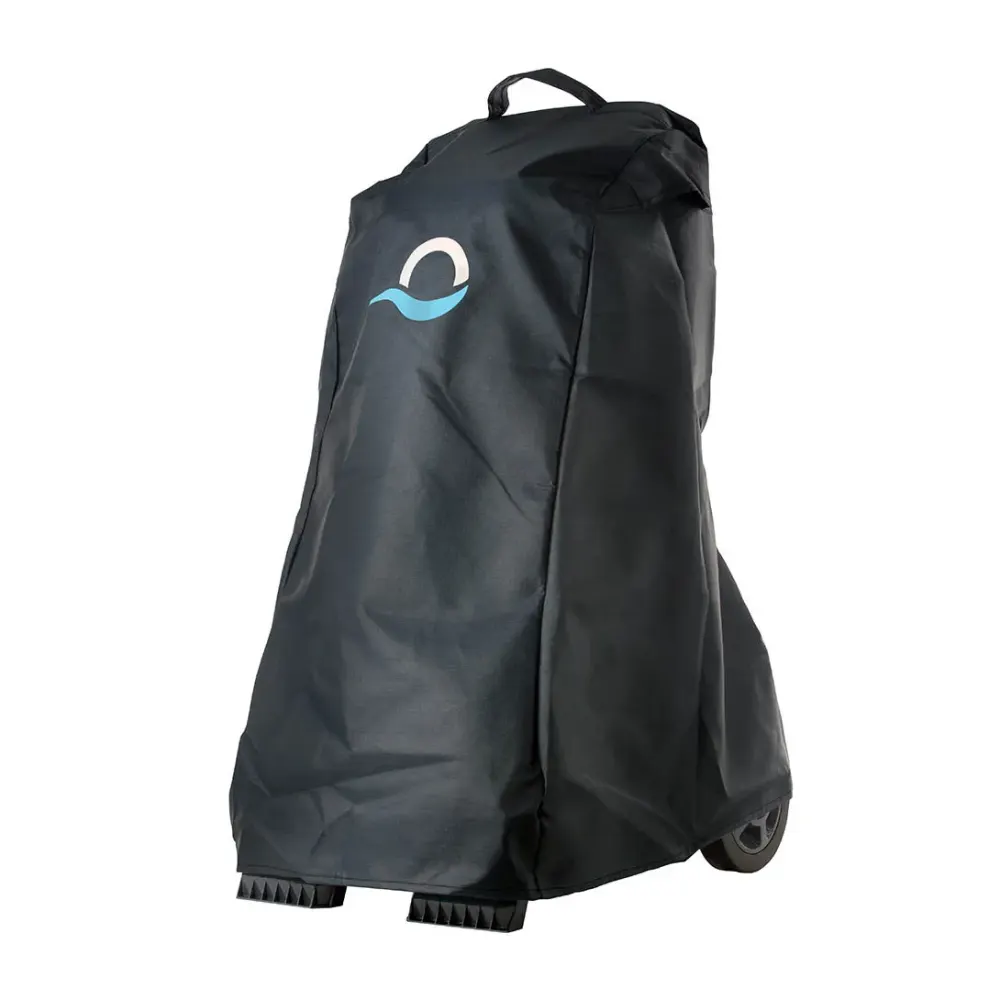
Support
Premium 40 manuals, videos and answers.
How-to videos


Questions about the Premium 40
How do I get started with my Dolphin?
Short answer: Unwrap your Dolphin, place the power supply at least 12 ft (3.5 m) from the pool, connect the cable, let the robot sink, then turn it on.
Unpack your Dolphin and remove all plastic wrapping before setting it up.
-
Step 1Prepare your Dolphin and power supply
- If your robot has white climbing rings, remove the plastic wrapping from those rings before the first cleaning cycle.
- Position the power supply at least 12 ft (3.5 m) from the pool edge. Choose a shaded spot if possible. The power supply is splash-proof, not waterproof.
- Caution: Using an extension cord is not recommended.
- Measure the longest part of your pool to estimate how much blue cable you need. Unroll only enough cable for the robot to reach the entire pool. Keep the extra cable coiled outside the pool.
- Connect the blue cable to the power supply. Match the connector plug to the notch on the power supply connection, then turn it clockwise until secure.
- Plug the power supply into a power outlet, but leave it turned off for now.
- Place your Dolphin in the water midway along the longest part of the pool.
-
Step 2Let your Dolphin sink
Allow the robot to settle on the pool floor. If it has foam brushes or brushes with foam rings, press them into the water until they are fully soaked.
-
Step 3Start the cleaning cycle
Press the ON/OFF button on the power supply to start your Dolphin.
Pool preparation and filter tips
Dolphin robots are designed for routine cleaning after you have completed the initial spring cleanup, started the pool filtration system, balanced the water chemistry, and removed major debris with a pool net.
Dolphin robots can be equipped with fine spring filters, ultra-fine filters, or both:
- Fine spring filters collect larger debris, including leaves, grass, and twigs. These filters are recommended for initial spring cleaning.
- Ultra-fine filters collect smaller particles, including sand and dust.
During and after cleaning
- Some models have adjustable handles that control the robot's speed while it cleans the waterline. Learn about Dolphin handles and floats.
- Never pull the robot by its cable while it is running.
- Your Dolphin shuts off automatically when the cleaning cycle finishes. If you stop it early, such as when the filter is full, turning it back on starts the cleaning cycle again from the beginning.
Find instructions for your model
For more information about your robot's features, look up its user manual. You will need your Dolphin model or serial number.
Applies to these models
Dolphin Wave 120, Dolphin Wave 100, Dolphin Sigma, Dolphin M400, Dolphin Wave 60, Dolphin Oasis Z5i, Dolphin Wave 80, Dolphin Nautilus CC Supreme, Dolphin Explorer E40, Dolphin ADVANTAGE, Dolphin Nautilus CC, Dolphin Proteus DX3, Dolphin Echo, Dolphin S100, Dolphin Nautilus AG, Dolphin Premium 10, Dolphin T15, Dolphin Cayman, Dolphin Premium 20, Dolphin T25, Dolphin Active 10, Dolphin S50, Dolphin Active Solo, Dolphin Active 15, Dolphin Escape, Dolphin ADVANTAGE ULTRA, Dolphin S200, Dolphin Quantum, Dolphin Active 20, Dolphin ADVANTAGE PRO, Dolphin Proteus DX4, Dolphin Nautilus CC Pro, Dolphin Proteus DX5i, Dolphin S300, Dolphin Active 30, Dolphin Premium 30, Dolphin T35, Dolphin Premium 40, Dolphin T45, Dolphin Explorer E30 WiFi, Dolphin T55i, Dolphin S400, Dolphin Active 40, Dolphin Explorer E50, Dolphin Premier, Dolphin Nautilus CC Plus, Dolphin Explorer E25, Dolphin Nautilus CC Plus WiFi, Dolphin Nautilus Titan, Dolphin M550, Dolphin Premium 60, Dolphin M600, Dolphin T60, Dolphin Explorer E70, Dolphin W20, Dolphin Wave 300 XL, Dolphin Wave 140, Dolphin Wave 200 XL
How do I properly store my Dolphin?
Short answer: After each cycle, remove your Dolphin from the pool and store it and its power supply away from direct sun, extreme temperatures and pool chemicals.

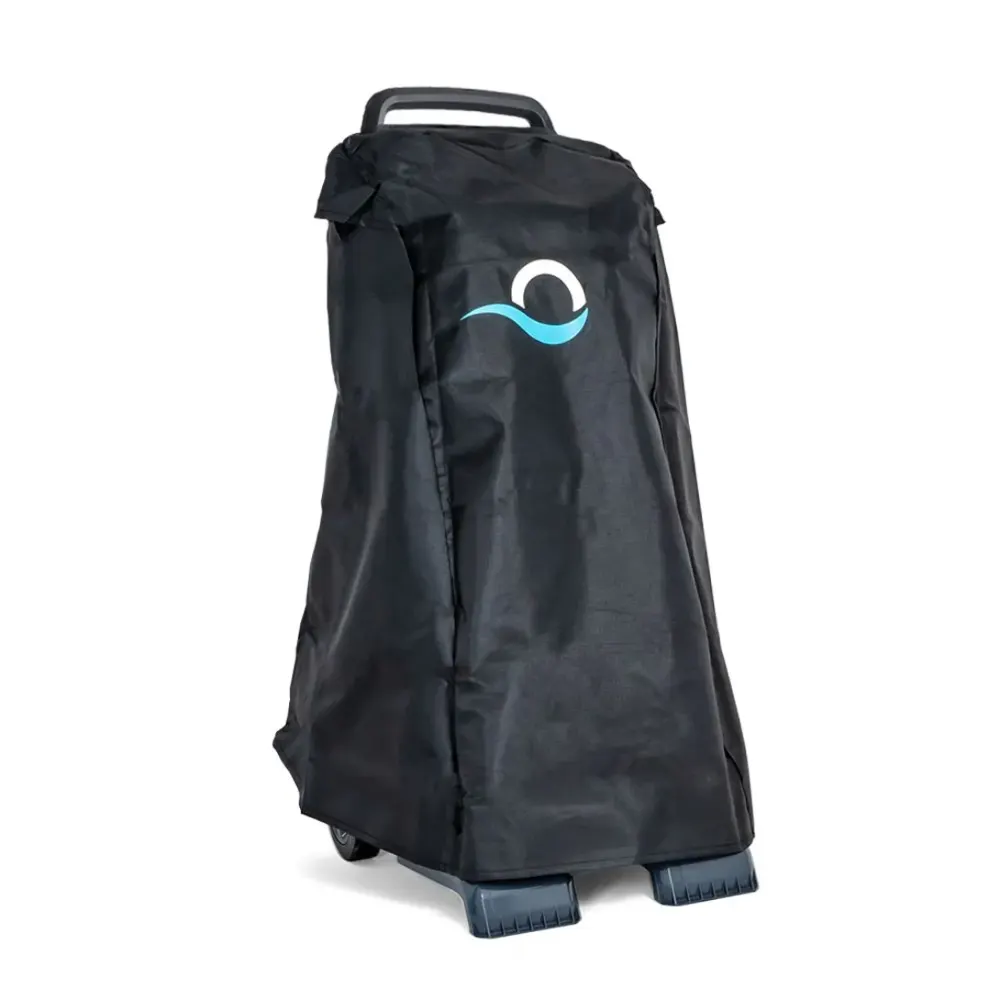
Image shown for illustration only.
After each cleaning cycle
Take your Dolphin out of the pool after every cleaning cycle. Store the robot and its power supply away from direct sunlight and excessive heat or cold to help prevent premature wear.
Keep the robot on a Dolphin caddy in a shaded spot. Coil the cable carefully so it does not kink.
Power supply placement
Use the power supply in a covered, shaded location that protects it from outdoor conditions, including rain, heat and cold.
Mount the power supply on the Dolphin caddy or set it on a raised surface away from the pool edge. Keep it at least 12 ft from the pool.
Offseason storage
When putting your Dolphin away for the season, store it on the caddy in a sheltered, well-ventilated area with a temperature between 41°F and 113°F.
Keep both the robot and power supply a reasonable distance from pool chemicals. Strong chemical fumes can cause corrosion over time.
My Dolphin came with fine filters. Are finer filters available for my Dolphin?
Short answer: Depending on your Dolphin model, finer options may include 50-micron ultra-fine filters or a 30-micron multilayer setup.
Yes. Finer filters are available for certain Dolphin models. The right option depends on your robot.

Multilayer filtration with a pre-filter: 30 microns.
Dolphin filter options
- Fine spring filters, 100 microns: These come with your robot and capture larger debris, such as leaves and twigs.
- Ultra-fine filters, 50 microns: Some models also include a separate set for smaller particles, such as sand, dirt and algae.
- Multilayer filtration, 30 microns: Some models allow an additional spring filter to be fitted to the ultra-fine filter basket. This creates a multilayer setup with a pre-filter for finer filtration. Compatibility depends on the model.
Choose filters based on the debris in your pool
Use the fine spring filters for the first cleanup when opening your pool for the season. They are also the choice when your pool has large debris.
Use ultra-fine filters when the debris is mostly small particles or algae.
Check your model before buying or changing filters
Refer to your robot's user manual to confirm which filters were included. The manual also has illustrations showing how to replace the filter panels.
Poolbots sells replacement filters. To find a compatible ultra-fine set for small debris such as algae, live chat or call Poolbots' pool experts. They can also help you check whether a 30-micron multilayer setup is compatible with your model.
Watch a comparison of the filtration types

Watch how to replace filter panels in robots with basket filters


Models covered
This guidance covers the models below. Included filters and available upgrades vary by model.
Dolphin Sigma, Dolphin M400, Dolphin Oasis Z5i, Dolphin Nautilus CC Supreme, Dolphin Explorer E40, Dolphin ADVANTAGE, Dolphin Nautilus CC, Dolphin Proteus DX3.
Dolphin Echo, Dolphin S100, Dolphin Nautilus AG, Dolphin Premium 10, Dolphin T15, Dolphin Cayman, Dolphin Premium 20, Dolphin T25.
Dolphin Active 10, Dolphin S50, Dolphin Active Solo, Dolphin Active 15, Dolphin Escape, Dolphin ADVANTAGE ULTRA, Dolphin S200, Dolphin Quantum.
Dolphin Active 20, Dolphin ADVANTAGE PRO, Dolphin Proteus DX4, Dolphin Nautilus CC Pro, Dolphin Proteus DX5i, Dolphin S300, Dolphin Active 30, Dolphin Premium 30.
Dolphin T35, Dolphin Premium 40, Dolphin T45, Dolphin Explorer E30 WiFi, Dolphin T55i, Dolphin S400, Dolphin Active 40, Dolphin Explorer E50.
Dolphin Premier, Dolphin Nautilus CC Plus, Dolphin Nautilus CC Plus WiFi, Dolphin Nautilus Titan, Dolphin M550, Dolphin T60, Dolphin W20, Dolphin Wave 140.
How do I connect my Dolphin to Wi-Fi with MyDolphin Plus?Fix
Short answer: Pair your Dolphin through Bluetooth first, then connect it to a 2.4 GHz Wi-Fi network in MyDolphin Plus.
MyDolphin Plus from Maytronics uses a cloud connection to let you control your Dolphin in real time, wherever you are and whenever you need to.
Watch this quick video for help with your first connection, or follow the steps below.
Phone and tablet compatibility
- Apple: iOS 10 or newer on an iPhone, iPad, or iPod.
- Android: operating system version 5 or newer.
Wi-Fi requirements
- The network must transmit on 2.4 GHz only.
- The password must be fewer than 32 characters, with no spaces or special characters such as #, %, &, ", $, or £.
- Signal strength at the power supply must be at least 60%, or 2 out of 3 bars.
If your network cannot meet these requirements, you can use a Bluetooth-only connection instead.
Step 1Get your phone or tablet ready
- Connect your phone or tablet to your Wi-Fi network. Check for at least 60% signal strength, or 2 out of 3 bars, where the power supply sits.
- Have your network name and password ready. The password must contain fewer than 32 characters.
- Turn on Bluetooth on your phone or tablet.
For Android, turn on GPS and location services.
For iOS 13 only, give MyDolphin Plus permission to use Bluetooth and location services while the app is running.
Step 2Prepare your Dolphin
- Plug the power supply into an electrical outlet and attach the Dolphin's blue cable to the power supply.
- Check that the connectivity LED begins blinking blue.
- Put your Dolphin in the pool water.
- Use the power supply's on/off button to begin a cleaning cycle.
Step 3Pair the app and connect to Wi-Fi
- Open MyDolphin Plus.
- Allow all permissions the app requires.
- Create an account, or sign up with your Gmail, Facebook, or Apple account.
- Scan the QR code on the side of the power supply. You can also select "Search manually" below the QR scanner. Once Bluetooth finds your Dolphin, the app begins pairing with the power supply.
- Wait for a steady blue connectivity LED and a confirmation message in the app.
- The app will then prompt you to connect to Wi-Fi.
- Check that the Wi-Fi network name field shows your network's name.
- Enter your network password, which must be fewer than 32 characters, and select Continue.
- Allow up to 2 minutes for the connection, depending on Wi-Fi signal strength. The power supply LEDs alternate between blue and green during this process.
- Look for a steady green connectivity LED and a confirmation message in the app.
If the first Bluetooth connection fails
- Review the permissions granted during signup, including location and Bluetooth Low Energy (BLE). Confirm that the Wi-Fi, cellular, and BLE connection requirements are met.
- Check that the blue cable is properly attached to the power supply.
- Look for a picture of your Dolphin in the app. If no robot appears, contact Poolbots' pool experts through live chat or phone. Have a screenshot of the setup screen where you are stuck.
Once pairing is complete, you can name your Dolphin, register its warranty, and use the app's features.
If the app stops on the loading screen
Setup has three connection stages. The percentage shown on the loading screen can help identify where the connection is failing.
Stage 1: 0-10%, sending Wi-Fi details to the power supply
After Bluetooth pairing, your phone sends the Wi-Fi information to the power supply. A stall here can mean that the connection dropped or the information did not transfer correctly.
- Close MyDolphin Plus, open it again, and retry the connection while standing near the power supply.
- Recheck the Wi-Fi network name. It should be entered correctly, with no foreign letters or characters.
Stage 2: 10-50%, connecting the power supply to the router
The power supply checks the Wi-Fi requirements, including the 2.4 GHz frequency, as it connects to the router. This stage can take up to 2 minutes.
- If setup remains at this stage, review all the Wi-Fi requirements above and confirm that your network meets them.
Stage 3: 50-90%, connecting the power supply to the cloud
A failure at this stage points to a problem with the cloud connection.
- Try resetting your router.
Supported Wi-Fi security
MyDolphin Plus supports WPA/WPA2-Personal and WPA2/WPA3-Personal.
Important compatibility limit
Buying a Wi-Fi-compatible power supply will not make a non-Wi-Fi Dolphin compatible with MyDolphin Plus.
Check the user manual to confirm whether your Dolphin supports the app.
Models covered by this guide
- Dolphin Sigma
- Dolphin M400
- Dolphin Oasis Z5i
- Dolphin Nautilus CC Supreme
- Dolphin Explorer E40
- Dolphin ADVANTAGE
- Dolphin Nautilus CC
- Dolphin ADVANTAGE PRO
- Dolphin Nautilus CC Pro
- Dolphin Proteus DX5i
- Dolphin S300
- Dolphin Active 30
- Dolphin Premium 40
- Dolphin T45
- Dolphin T55i
- Dolphin S400
- Dolphin Active 40
- Dolphin Explorer E50
- Dolphin Nautilus CC Plus
- Dolphin Nautilus CC Plus WiFi
- Dolphin Nautilus Titan
- Dolphin M550
- Dolphin Premium 60
- Dolphin M600
- Dolphin Explorer E70
What water conditions are recommended for my Dolphin?
Short answer: Use your Dolphin in balanced water at 43–95°F, keep salinity at or below 5,000 ppm, and wait 24 hours after shock or flocculant treatment.
Keep your pool chemicals balanced before running your corded Dolphin. Unbalanced water can reduce cleaning performance and cause the robot’s components to wear out early.
Too little chlorine can allow small algae deposits to clog the filters and reduce motor power. If the pH is above the recommended range, the robot will not climb the walls.
After shock or flocculant treatment
Wait 24 hours after a chemical shock or flocculant treatment before returning your Dolphin to the pool.
Recommended water conditions
Use your Dolphin in water between 43–95°F. Below 59°F, wall-climbing performance may be reduced.
Water chemistry or temperatures outside the recommended ranges can interfere with operation and lead to early wear.
| Parameter | Recommended range |
|---|---|
| Alkalinity | 80–120 ppm |
| pH | 7.2–7.6 |
| Calcium Hardness | 150–250 ppm |
| Chlorine | 1.0–3.0 ppm |
| Cyanuric Acid | 30–50 ppm |
| Algaecide | 30–50 ppm |
Saltwater pools
Your Dolphin can run in a saltwater pool. Keep salinity at 5,000 ppm or less. Rinse the robot with tap water after every cleaning cycle to help prevent buildup.
Applies to these models
Dolphin Wave 120, Dolphin Wave 100, Dolphin Sigma, Dolphin M400, Dolphin Wave 60, Dolphin Oasis Z5i, Dolphin Wave 80, Dolphin Nautilus CC Supreme, Dolphin Explorer E40, Dolphin ADVANTAGE, Dolphin Nautilus CC, Dolphin Proteus DX3, Dolphin Echo, Dolphin S100, Dolphin Nautilus AG, Dolphin Premium 10, Dolphin T15, Dolphin Cayman, Dolphin Premium 20, Dolphin T25, Dolphin Active 10, Dolphin S50, Dolphin Active Solo, Dolphin Active 15, Dolphin Escape, Dolphin ADVANTAGE ULTRA, Dolphin S200, Dolphin Quantum, Dolphin Active 20, Dolphin ADVANTAGE PRO, Dolphin Proteus DX4, Dolphin Nautilus CC Pro, Dolphin Proteus DX5i, Dolphin S300, Dolphin Active 30, Dolphin Premium 30, Dolphin T35, Dolphin Premium 40, Dolphin T45, Dolphin Explorer E30 WiFi, Dolphin T55i, Dolphin S400, Dolphin Active 40, Dolphin Explorer E50, Dolphin Premier, Dolphin Nautilus Titan, Dolphin M550, Dolphin Premium 60, Dolphin M600, Dolphin T60, Dolphin Explorer E70, Dolphin W20, Dolphin Wave 300 XL, Dolphin Wave 140, Dolphin Wave 200 XL.
How long can I leave my Dolphin in the pool?
Short answer: Remove your Dolphin after each cycle, or leave it in for the full week if your model has a weekly timer or Eco Mode.
We recommend removing your Dolphin after every cleaning cycle so you can empty and wash its filters.
Between uses, keep the robot and power supply somewhere dry and out of direct sunlight. During operation, place the power supply in a shaded, covered spot away from water and direct sun.
Rinse your Dolphin regularly with clean tap water to help prevent buildup.
Using a weekly timer or Eco Mode
If your Dolphin has a weekly timer option or Eco Mode, it can stay in the pool for the full week. Clean the filter when the weekly cycle ends.
Safety and care reminders
- Keep your pool chemicals balanced when leaving the robot in the water for its weekly timer. Read more about water treatment and your Dolphin.
- For safety, always take the robot out before anyone swims.
- To confirm the length of your model's cleaning cycles, check your Dolphin user manual or your model's product page on Poolbots.
Models covered
- Dolphin Sigma
- Dolphin M400
- Dolphin Oasis Z5i
- Dolphin Nautilus CC Supreme
- Dolphin Explorer E40
- Dolphin ADVANTAGE
- Dolphin Nautilus CC
- Dolphin Proteus DX3
- Dolphin Echo
- Dolphin S100
- Dolphin Nautilus AG
- Dolphin Premium 10
- Dolphin T15
- Dolphin Cayman
- Dolphin Premium 20
- Dolphin T25
- Dolphin Active 10
- Dolphin S50
- Dolphin Active Solo
- Dolphin Active 15
- Dolphin Escape
- Dolphin ADVANTAGE ULTRA
- Dolphin S200
- Dolphin Quantum
- Dolphin Active 20
- Dolphin ADVANTAGE PRO
- Dolphin Proteus DX4
- Dolphin Nautilus CC Pro
- Dolphin Proteus DX5i
- Dolphin S300
- Dolphin Active 30
- Dolphin Premium 30
- Dolphin T35
- Dolphin Premium 40
- Dolphin T45
- Dolphin Explorer E30 WiFi
- Dolphin T55i
- Dolphin S400
- Dolphin Active 40
- Dolphin Explorer E50
- Dolphin Premier
- Dolphin Nautilus CC Plus
- Dolphin Explorer E25
- Dolphin Nautilus CC Plus WiFi
- Dolphin Nautilus Titan
- Dolphin M550
- Dolphin Premium 60
- Dolphin M600
- Dolphin T60
- Dolphin Explorer E70
- Dolphin W20
- Dolphin Wave 140
How does my Dolphin scan and move around the pool?
Short answer: Your Dolphin uses the timing-based CleverClean algorithm to navigate the pool, cleaning the floor and, if equipped, the walls and waterline.

Dolphin robots navigate with CleverClean, an algorithm that uses timing to guide movement around the pool.
Your robot is programmed to clean the pool floor. If it has a climbing feature, it also cleans the walls and/or waterline. Models with wall and waterline cleaning are programmed to clean those areas every 4-6 minutes.
When you turn your Dolphin on, it begins cleaning in the direction it is facing in the pool. Your pool filter pump can stay on while the robot cleans.
To help your Dolphin reach all areas, we recommend placing it in the middle of the pool, lengthwise.
For your model's cleaning modes and cycle length, check its user manual or its product page on Poolbots.
How do I register my Dolphin's warranty?
Short answer: Register your Dolphin through Maytronics' online portal using your robot's serial number and proof of purchase.
Use the Maytronics registration portal at warranty details to register your Dolphin and submit a rebate request.
Have your robot's serial number and proof of purchase ready before you start.
Find your serial number
Your Dolphin's serial number has 10 characters. You can find it in any of these locations:
- The white label on the outside of the box.
- Your warranty card.
- The white barcode label on the Dolphin's inside casing.
Register your Dolphin
-
Step 1Open the registration portal
Visit warranty details.
-
Step 2Enter the serial number
Type your robot's serial number in the first field. For help finding it, select the “i” icon beside “Where do I find my robot’s serial number?”.
-
Step 3Choose your previous cleaning method
Select how you cleaned your pool before getting your Dolphin. Then select “Continue.”
-
Step 4Add your personal information
Fill in your details. When you start typing your country or state, choose the correct entry from the dropdown list. Select “Continue” when you are done.
-
Step 5Add promotion and purchase details
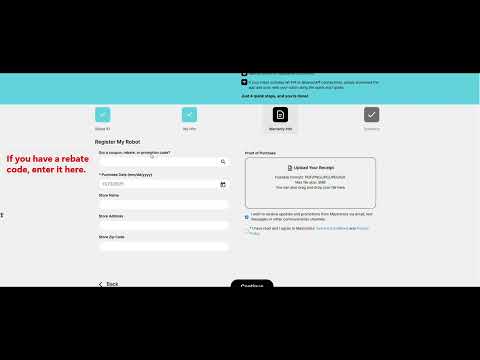
Enter your rebate or promotion code in the first field, if you have one. Otherwise, leave that field empty. Select your purchase date. You can also provide the store name, address, and ZIP code.
-
Step 6Upload your proof of purchase
Select “Upload Your Receipt.” An original receipt or original invoice is preferred. It must include the purchase date, product, and price.
If you cannot find the original receipt, you can use a credit card or bank statement instead. Leave only the date, merchant/product, and amount visible. Hide or remove personal information before uploading it.
-
Step 7Accept the terms
Agree to the Terms & Conditions, then select “Continue.”
-
Step 8Review and submit
Check the information you entered, then select “Submit” to finish registering your Dolphin.
Check your warranty length
Warranty length depends on your model and region. Check your model's product page for its warranty length. Poolbots' pool experts can help by live chat or phone if you need clarification.
Watch the registration walkthrough
This video covers robot registration and rebate request submission.
Start a warranty repair claim
For a Dolphin repair or power supply replacement, use Maytronics' self-service tool to submit a warranty claim, also called an RMA (Return Merchandise Authorization).
If you need help, contact Poolbots' pool experts by live chat or phone. For warranty repairs, Poolbots will point you to Maytronics' service process.
Applicable models
- Dolphin Wave 120
- Dolphin Wave 100
- Dolphin Sigma
- Dolphin M400
- Dolphin Wave 60
- Dolphin Oasis Z5i
- Dolphin Wave 80
- Dolphin Nautilus CC Supreme
- Dolphin Explorer E40
- Dolphin ADVANTAGE
- Dolphin Nautilus CC
- Dolphin Proteus DX3
- Dolphin Echo
- Dolphin S100
- Dolphin Nautilus AG
- Dolphin Premium 10
- Dolphin T15
- Dolphin Cayman
- Dolphin Premium 20
- Dolphin T25
- Dolphin Active 10
- Dolphin S50
- Dolphin Active Solo
- Dolphin Active 15
- Dolphin Escape
- Dolphin ADVANTAGE ULTRA
- Dolphin S200
- Dolphin Quantum
- Dolphin Active 20
- Dolphin ADVANTAGE PRO
- Dolphin Proteus DX4
- Dolphin Nautilus CC Pro
- Dolphin Proteus DX5i
- Dolphin S300
- Dolphin Active 30
- Dolphin Premium 30
- Dolphin T35
- Dolphin Premium 40
- Dolphin T45
- Dolphin Explorer E30 WiFi
- Dolphin T55i
- Dolphin S400
- Dolphin Active 40
- Dolphin Explorer E50
- Dolphin Premier
- Dolphin Nautilus CC Plus
- Dolphin Explorer E25
- Dolphin Nautilus CC Plus WiFi
- Dolphin Nautilus Titan
- Dolphin M550
- Dolphin Premium 60
- Dolphin M600
- Dolphin T60
- Dolphin Explorer E70
- Dolphin W20
- Dolphin Wave 300 XL
- Dolphin Wave 140
- Dolphin Wave 200 XL
- Dolphin Liberty 200
- Dolphin Liberty 300
- Dolphin Liberty 400
What are the voltage requirements for the Dolphin power supply unit?
Short answer: Your Dolphin power supply requires a standard 120V outlet, and GFCI protection is recommended.
Connect your Dolphin power supply to a standard 120V outlet. We recommend an outlet with GFCI protection.
Most Dolphin pool cleaners made by Maytronics are highly energy-efficient, drawing less than about 1 amp during operation (approximately 100–180 watts).
How do I remove my Dolphin from the pool?
Short answer: Turn off and unplug the power supply, gently guide your Dolphin to the pool edge with the blue cable, then lift it by the handle and let it drain.
- Switch off the power supply, then unplug the black cable from the electrical outlet.
- Gently pull the blue floating cable to bring your Dolphin up to the pool edge.
- Grasp the handle and start lifting the robot out. Let some water drain before lifting it completely out of the pool.
If you need help lifting the robot, a retrieval hook is available for purchase. It attaches to a standard pool pole to help you lift the robot safely out of the water. Ask Poolbots' pool experts about the hook by live chat or phone.

Do not yank the blue floating cable to pull your Dolphin out. Rough pulling can cause damage. Use the handle to lift the robot.
You can set the robot on the pool edge to let the remaining water drain.
Does my Dolphin come with cleaning modes?
Short answer: Some Dolphin models have cleaning modes, but availability and cycle durations vary, so check your model's user manual.
Some Dolphin models offer cleaning modes, while others do not. Check your model's user manual to confirm whether it has this feature.
For models with cleaning modes, the available options and cycle durations vary by model. You can find those details in your robot's user manual or on its product page.
Depending on your model and its supported features, you can select the cleaning mode and cycle duration in the MyDolphin/MyDolphin Plus App.
Models covered by this answer
This guidance applies to the models below, but it does not mean every model includes cleaning modes.
Dolphin Sigma, Dolphin M400, Dolphin Oasis Z5i, Dolphin Nautilus CC Supreme, Dolphin Explorer E40, Dolphin ADVANTAGE, Dolphin Nautilus CC, Dolphin Proteus DX3, Dolphin ADVANTAGE ULTRA, Dolphin S200, Dolphin Quantum, Dolphin Active 20, Dolphin ADVANTAGE PRO, Dolphin Proteus DX4, Dolphin Nautilus CC Pro, Dolphin Proteus DX5i, Dolphin S300, Dolphin Active 30, Dolphin Premium 30, Dolphin T35, Dolphin Premium 40, Dolphin T45, Dolphin Explorer E30 WiFi, Dolphin T55i, Dolphin S400, Dolphin Active 40, Dolphin Explorer E50, Dolphin Premier, Dolphin Nautilus CC Plus, Dolphin Explorer E25, Dolphin Nautilus CC Plus WiFi, Dolphin Nautilus Titan, Dolphin M550, Dolphin Premium 60, Dolphin M600, Dolphin T60, Dolphin Explorer E70.
Premium & T-Series
Other Premium & T-Series models.
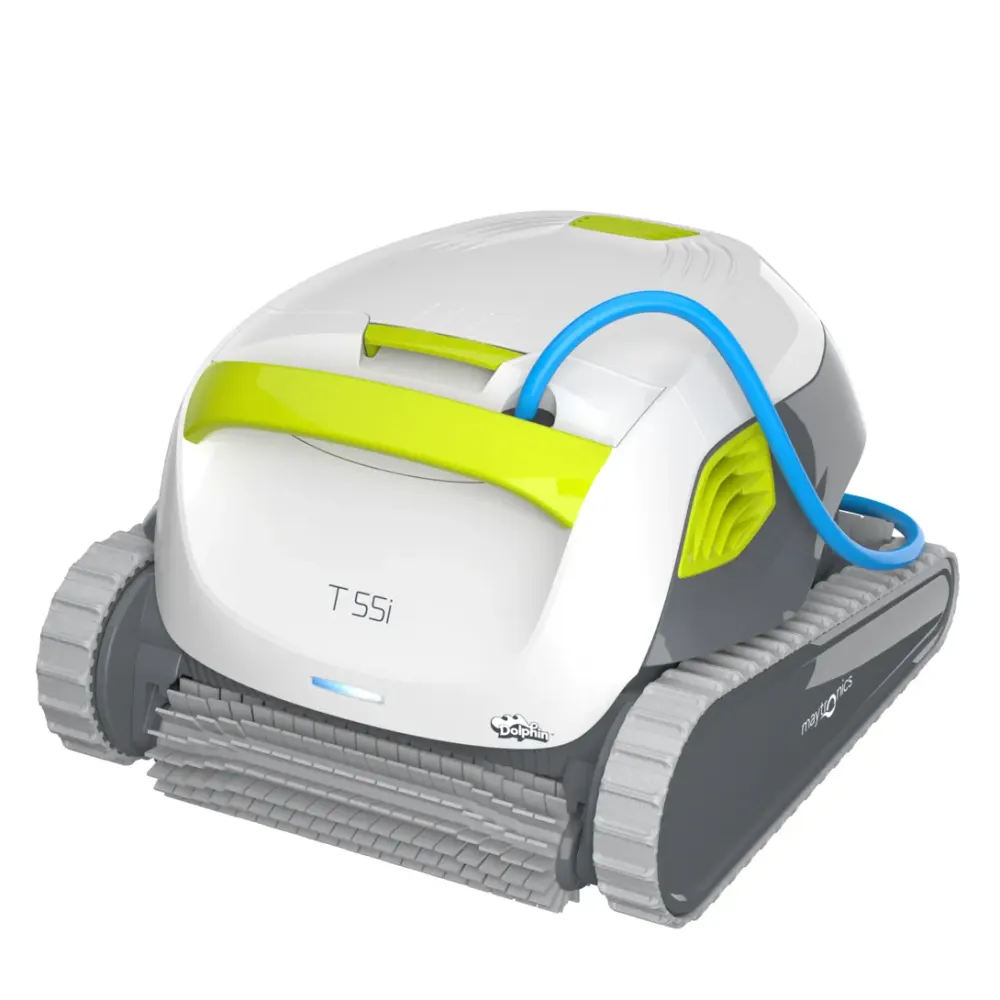
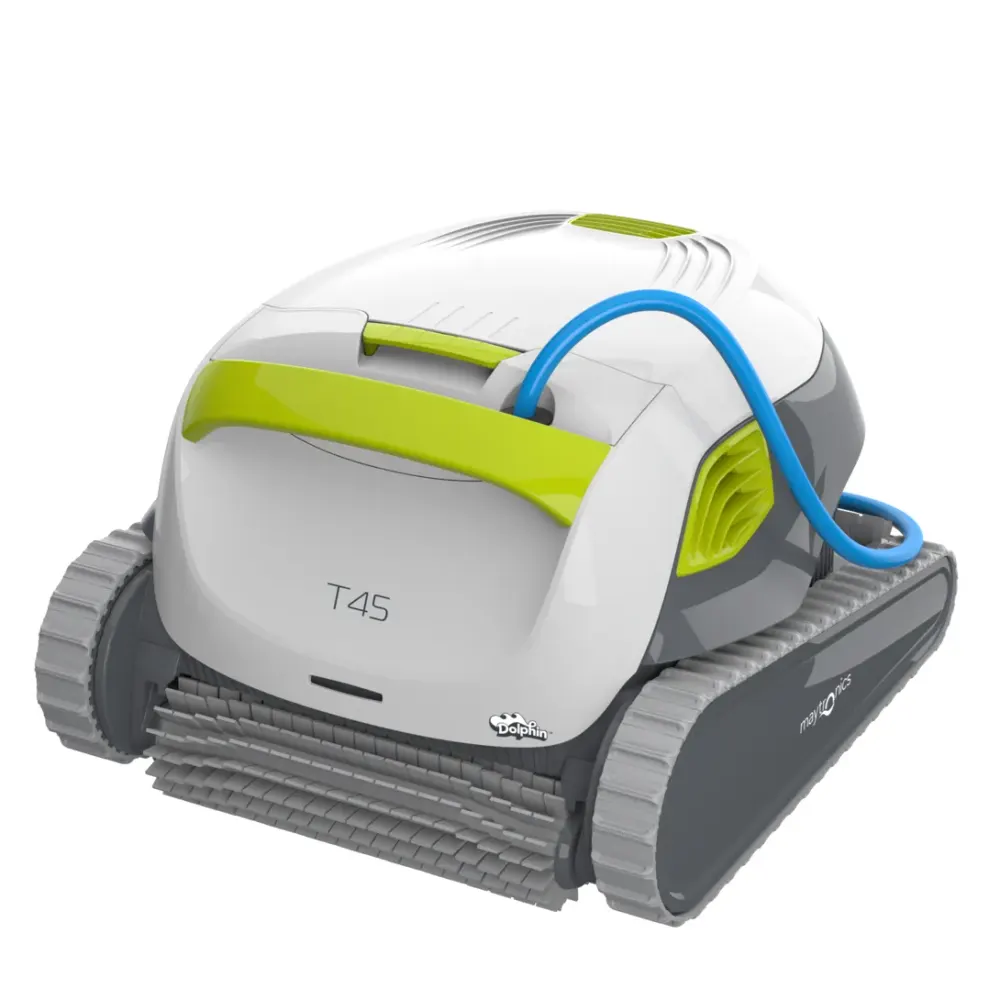
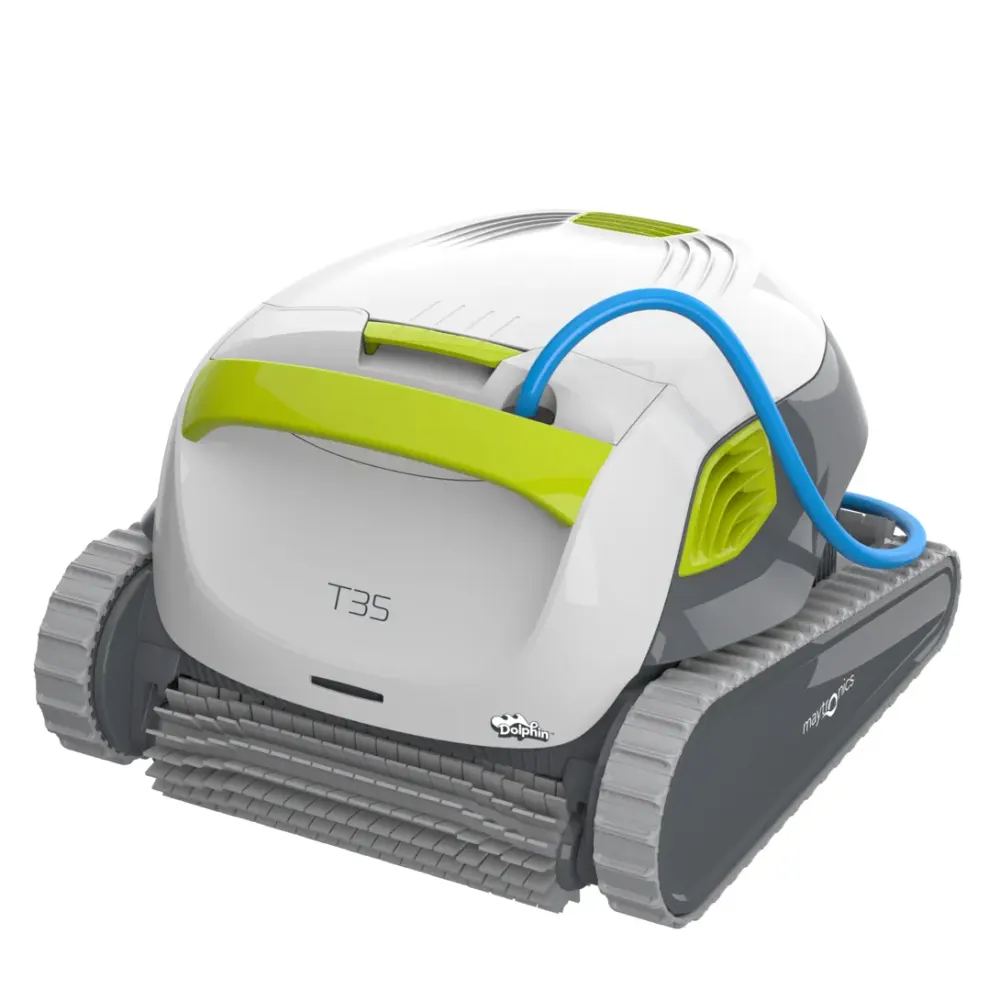
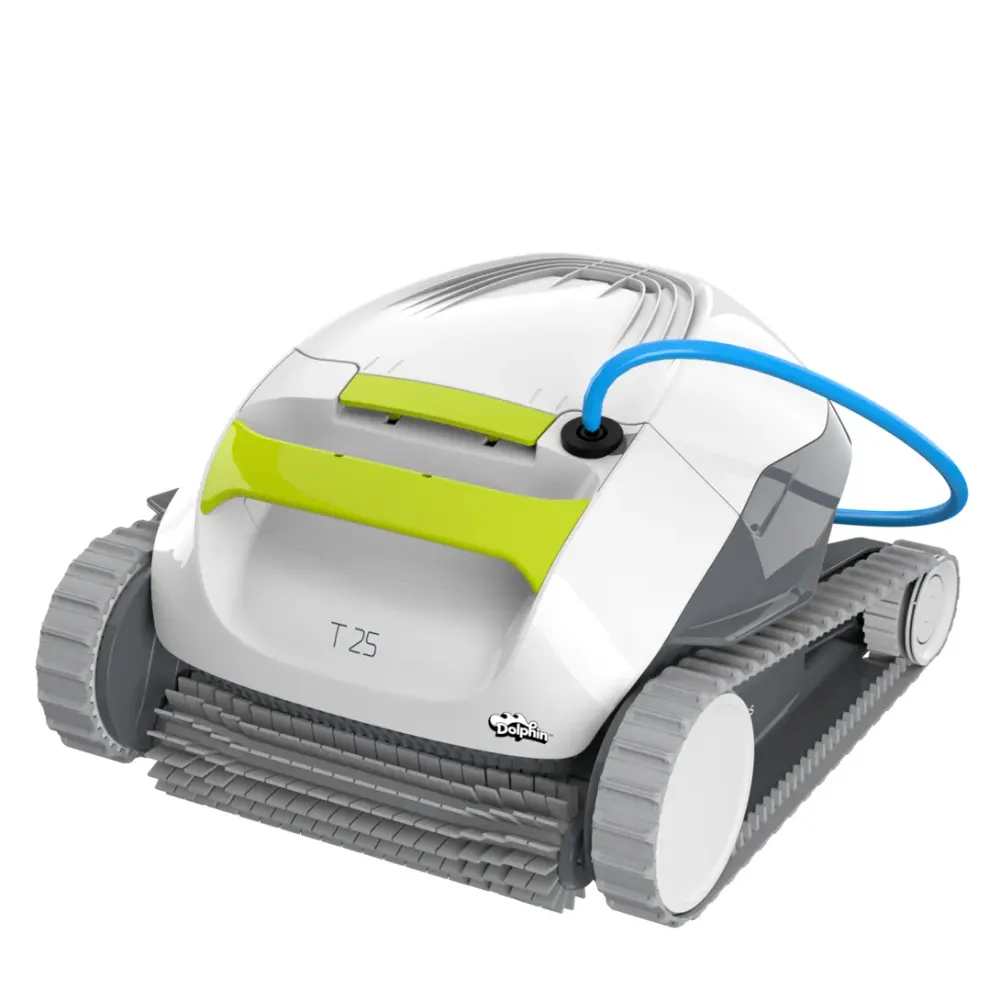
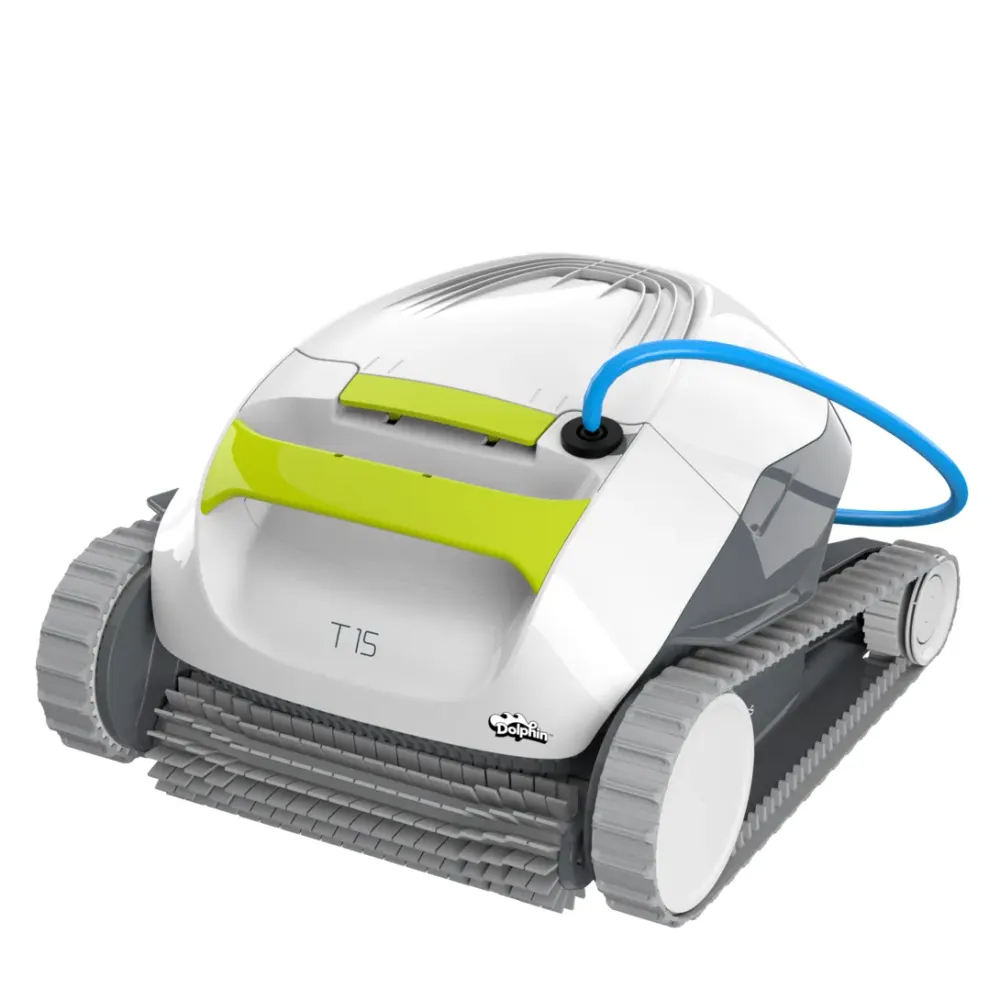
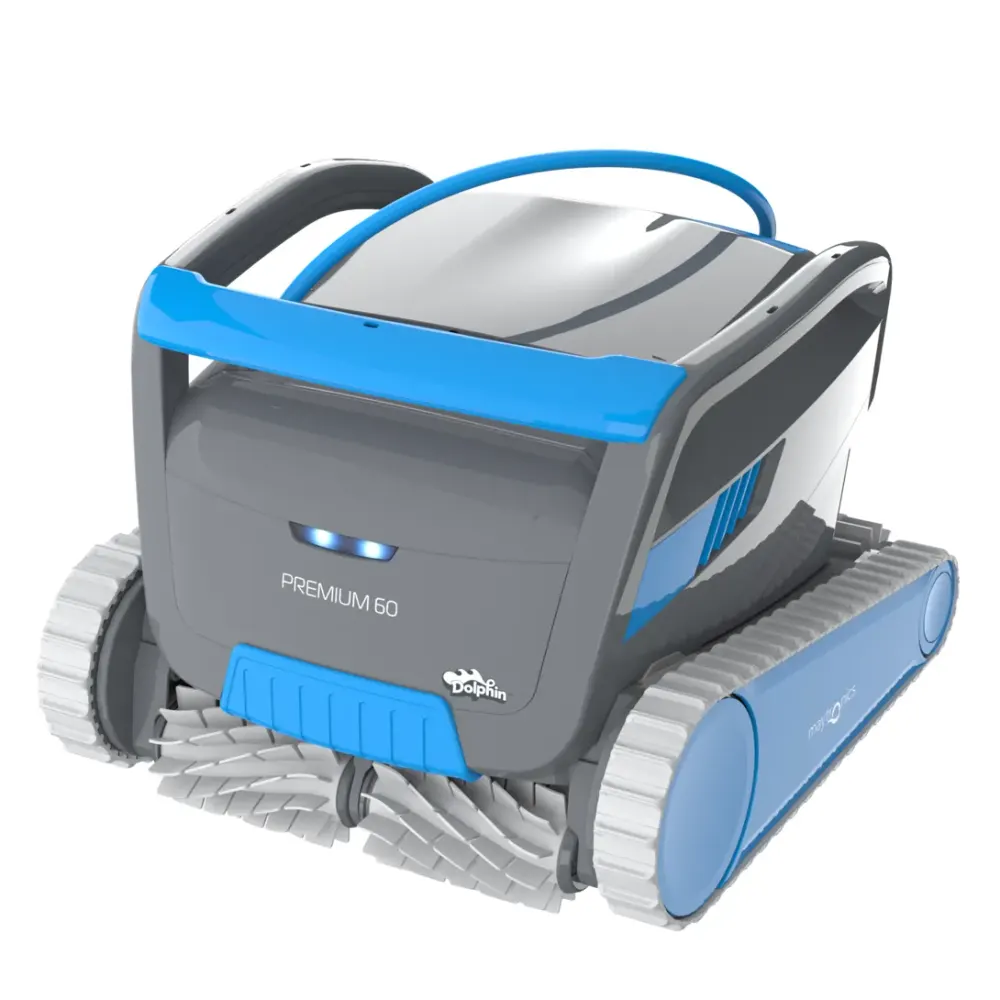
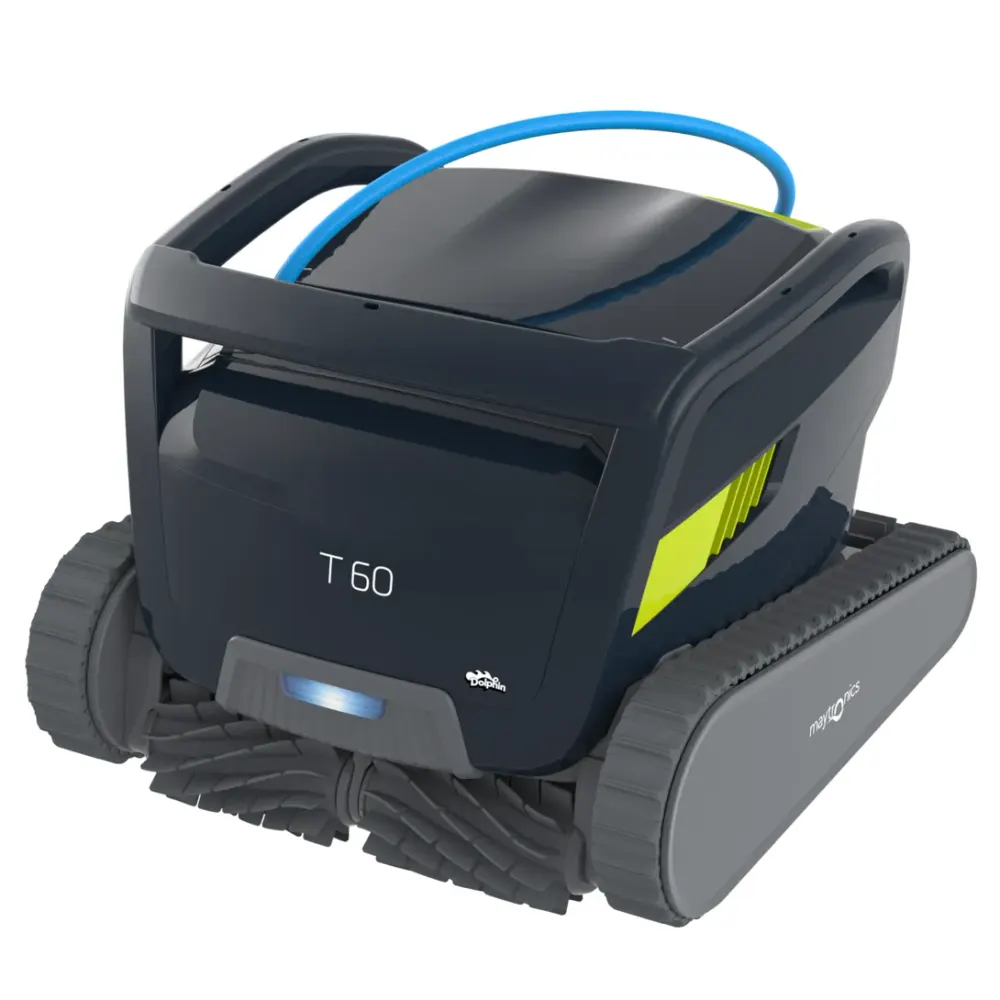
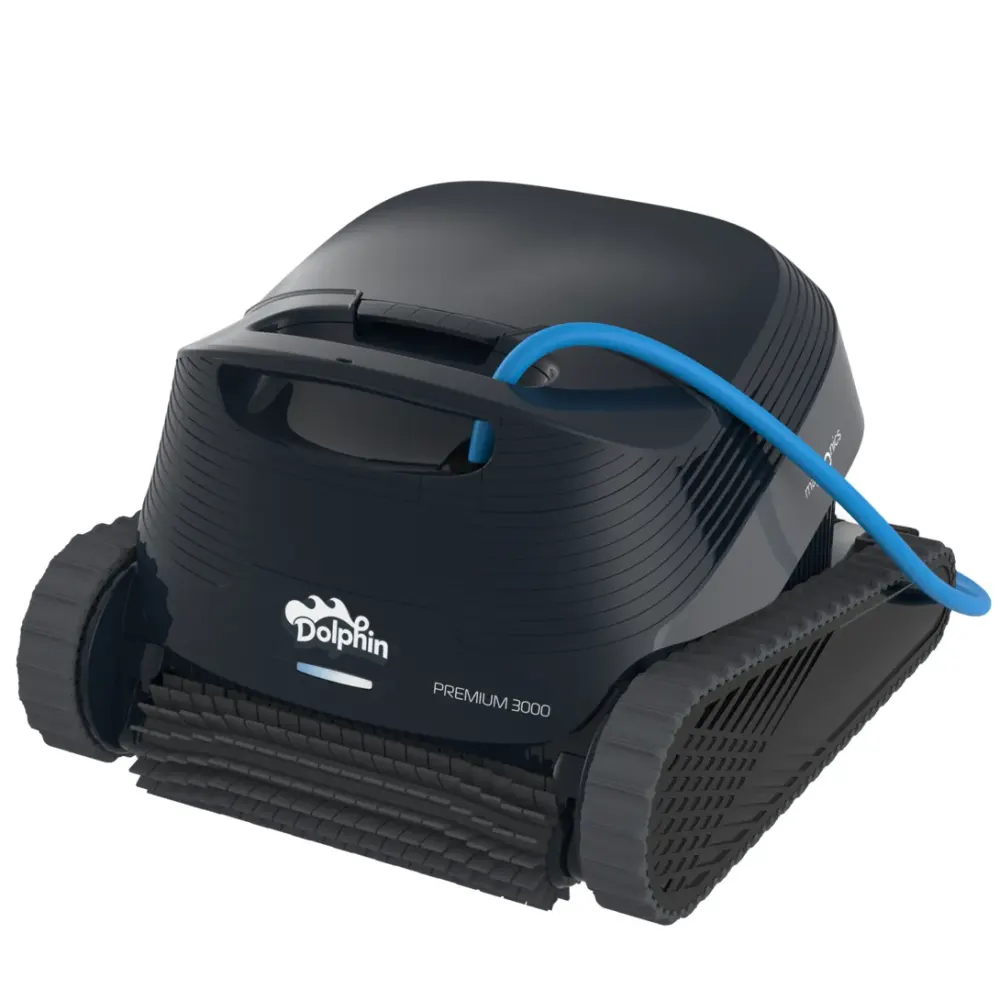
Looking for a Premium 40?
Maytronics sells this model through local pool stores. Compare it with the Dolphins we ship free with a 30-day trial, or find a dealer near you.