


















Troubleshooting · Cleaning Performance
How can I change the filter on my Wave90i?
Short answer: You can swap fine and ultra-fine basket panels, switch between the basket and filter bag, or replace the bag on your Dolphin Wave 90i.
First, try swapping the basket's fine or ultra-fine filter panels to suit the debris in your pool.
Based on Maytronics support, updated 2026-01-26, rewritten by Poolbots' pool experts. Applies to 1 model. Parts that fix it are below.
The fix
Step by step.
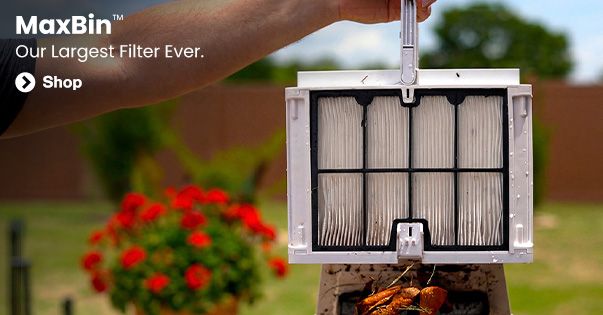
The Dolphin Wave 90i filter basket accepts fine or ultra-fine panels. Choose between them based on the debris in your pool.
Swap the filter basket panels
This video shows how to change the panels:

Switch between the filter basket and filter bag
Watch this video to see how to replace the basket with the bag:

Change from the filter basket to the filter bag
- Take the filter basket out of the robot.
- Insert the black filter bag frame supplied with the filter bag. Listen for a click to confirm that it has locked in place.
- Place the filter bag assembly inside the black filter frame.
Change from the filter bag to the filter basket
- Use the black handle to pull the filter bag assembly out.
- Use the side tabs to remove the black filter frame from the robot.
- Put the filter basket into the robot.
Install a replacement filter bag
- Open the filter bag's zipper.
- Pull the bag down from its frame.
- Detach the bag from the bottom of the filter frame.
- Unzip the replacement filter bag and turn it inside out.
- Tuck the bag's bottom edge around the entire bottom of the filter frame. Make sure it sits securely in the niche.
- Pull the bag over the filter frame, turning it right side out.
- Close the zipper, then tuck the top of the bag into the frame assembly.
Source: Maytronics support. Same steps and facts, rewritten for clarity; the videos and illustrations are Maytronics' own.
Replacement parts
Parts that fix this.
This answer comes down to filters. The exact part depends on the model: choose your robot and we open its parts list, or browse the category for every model.
Browse by category:Filters All genuine Dolphin parts →
By model
This fix on your robot.
Every model below has its own troubleshooting guide that repeats this fix with the exact parts that fit it. The link opens the guide on this fix.
Still need help?

