
























Nautilus · Model 99994401-PC
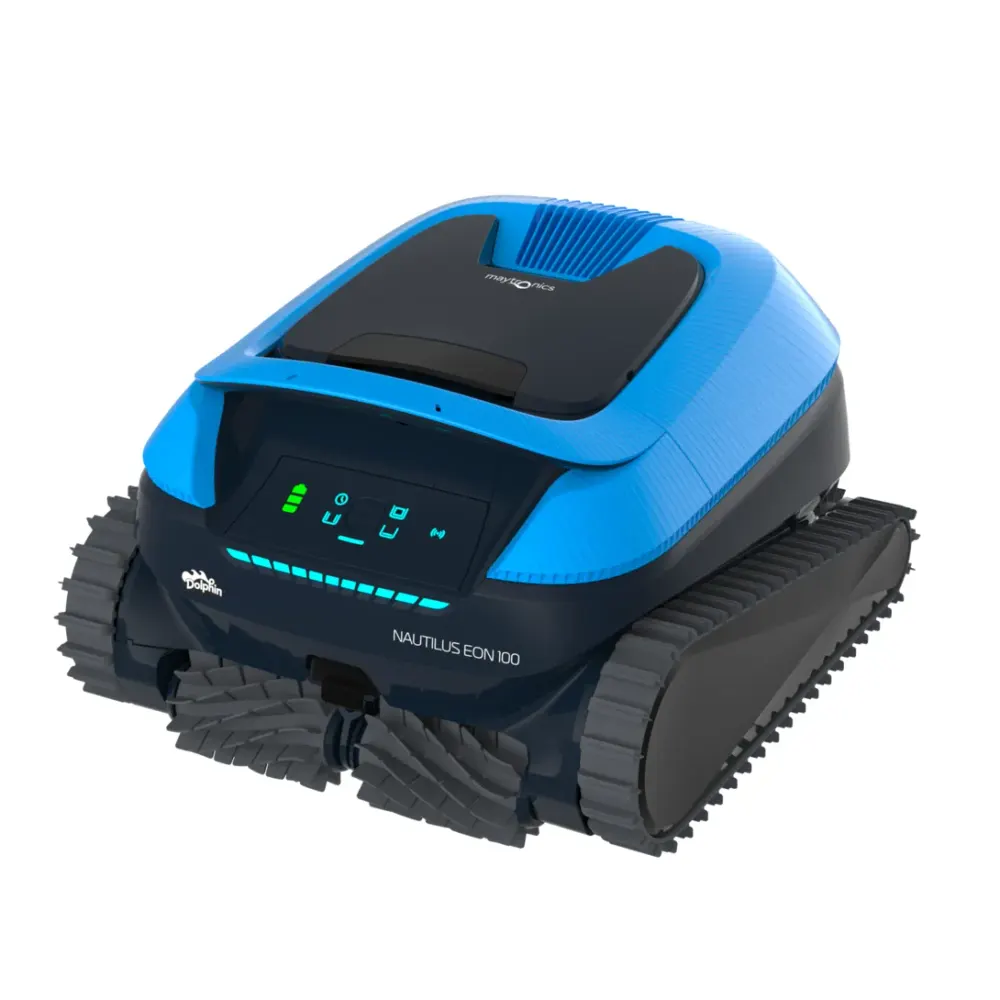
Dolphin Nautilus EON 100 manual and guides.
The official Nautilus EON 100 documents, hosted here and the spec sheet, with the parts, warranty and troubleshooting pages one click away.
Documents
Nautilus EON 100 downloads.
PDFs are hosted here and open in a new tab. Missing one or need another language? and we will send it.
Tech specs
Dolphin Nautilus EON 100 specifications.
- Pool size
- Up to 50 ft
- Cleans
- Floor, Steps, Sun Ledge, Walls, Water Line, Corners, Safety Ledge
- Pool type
- In ground and Above Ground
- Cycle
- 2 Hours
- Warranty
- 1 year
- Filter
- Fine Filter Kit
- App
- Maytronics One
- Weight
- 22.0 lb
Product Attributes
- Maximum Pool length
- 50 ft
- Cleaning Coverage
- Floor, Steps, Sun Ledge, Walls, Water Line, Corners, Safety Ledge
- Default Cycle Time
- 2 Hours
- Cycle Duration (hours)
- 1.5, 2, 2.5
- Warranty (years)
- 1
- Delay Feature
- No
- Weekly Timer
- Yes
- Mobile Application
- Maytronics One
- Anti Tangling Swivel
- No
- Filter Type
- Fine Filter Kit
Connectivity & Automation
- Automation Mode
- No
Size & Dimension
- Package Dimensions
- 22.1x17.7x12.4 inch
- Robot Weight
- 22.05 lb
- Net Height
- 11.146 inch
- Net Length
- 17.693 inch
- Net width
- 16.201 inch
Cleaning
- Filter Access
- Top Access
- Full Filter Indicator
- Yes
- Waterline Scrubbing
- No
- Enhanced Cleaning Cycles
- Yes
- Active Brush
- Yes
- Number of Brushes
- 2
- Brush Type
- Standard Brush
- Suction Rate
- 4000.0 gph
Pool Attributes
- Pool Shape
- Rectangular, Round, Free Shape, Kidney
- Pool Classification
- In ground and Above Ground
Other
- Remote Control
- No
Owner questions
Questions about the Nautilus EON 100.
Why doesn't my cordless robot respond to the app while underwater?Fix
Short answer: Your cordless robot disconnects from Wi-Fi and Bluetooth underwater, so select its cleaning program in the app before placing it in the pool.
Cordless EON™ and Liberty 400/600 robots do not maintain a Wi-Fi or Bluetooth connection while submerged and cleaning. Once underwater, the robot follows its selected program on its own, without an active app connection.
Set the program before putting the robot in the pool
These Maytronics One app instructions apply to Dolphin EON 100, Dolphin Nautilus EON 100, Dolphin EON 120d, Dolphin Nautilus EON 120d, and Dolphin Liberty 600.
- With the robot out of the water, connect to it over Wi-Fi in the Maytronics One app.
- Choose your cleaning mode or weekly schedule (UltraRun™ Mode/Eco Mode).
- Put the robot in the pool to start the cycle. It will carry out the program you selected independently.
Reconnecting after cleaning
If the robot was previously connected, its Wi-Fi connection to the app returns automatically after you take it out of the water.
Other connection types
Corded robots can stay connected to Wi-Fi throughout cleaning because their connection runs through the power supply, which stays outside the pool.
Liberty 400 uses Bluetooth only and pairs with the MyDolphin Plus app, not the Maytronics One app.
Why isn't my EON behaving properly?Fix
Short answer: Update your EON's software in the MaytronicsOne app before trying other troubleshooting steps.
Applies to: Dolphin EON 100, Dolphin Nautilus EON 100, Dolphin EON 120d.
Start by checking that your robot has the latest software. Updates provide fixes, improvements, and capabilities that help your EON work as intended.
Update your EON's software
-
Step 1: Prepare your phone Download the MaytronicsOne app and turn on Bluetooth on your smartphone.
-
Step 2: Charge and disconnect the robot Charge the robot fully. Check that the battery indicator displays three solid green bars, then disconnect the robot from its charger before moving on.
-
Step 3: Sign in to the app Open the MaytronicsOne app. Create an account or sign in to an existing one, then enter the validation code you receive by email.
-
Step 4: Turn on Bluetooth pairing Hold the robot's power button for 3–5 seconds to activate pairing. Look for a blinking blue LED.
-
Step 5: Pair your robot Follow the app's on-screen pairing instructions. When your robot appears, select it to start pairing. Your smartphone must not be connected to another Bluetooth device during this step.
-
Step 6: Complete the software update If the app offers a software update, complete it. This is an essential part of troubleshooting.
During the update:
- Keep your phone close to the robot.
- Keep the app open and stay on the update screen until it finishes.
- Allow the update to finish without interruption.
-
Step 7: Set up Wi-Fi After the software update finishes, connect the robot to a 2.4 GHz Wi-Fi network. You can skip this setup and connect to Wi-Fi later if you prefer.
-
Step 8: Check the connection light A successful connection is indicated by three LED blinks, followed by a steady blue light.
Important: Before moving on to any other troubleshooting, confirm that your EON is running the latest available software.
How does Dolphin EON save you up to 20 hours per year on maintenance?
Short answer: With DebrisLock™ backwash filtration, Dolphin EON can reduce filter maintenance to about 5 minutes once a week, saving up to 20 hours per year.
Dolphin EON™ uses patented DebrisLock™ backwash filtration to reduce how often you need to clean the filter. With this system, maintenance can take about 5 minutes once a week, helping save up to 20 hours per year.
DebrisLock™ reduces filter-cleaning work through three features:
- Fine-particle capture: It compresses and holds fine particles for more efficient filtration.
- 1-liter backwash capacity: It allows collected debris to be flushed out easily.
- Two openings at the bottom: This design makes cleaning quick and convenient.
The DebrisLock™ backwash filter is included with Dolphin EON 120d and sold as an add-on for Dolphin EON 100.
Applies to: Dolphin EON 100, Dolphin Nautilus EON 100, Dolphin EON 120d.
How do I connect to the Maytronics One App for the first time?
Short answer: Download the Maytronics One App and pair your robot over Bluetooth with the charger disconnected; 2.4 GHz Wi-Fi setup is optional.
Before you start: The robot does not stay connected to Wi-Fi or Bluetooth while running in the water.
The Maytronics One App lets you pair with Dolphin EON 100, Dolphin Nautilus EON 100, Dolphin Liberty 600, or EON 120d to monitor and adjust your robot’s settings. You can set a weekly cleaning schedule, choose cleaning modes, and access other app features.
Download the app from the Google Play Store or Apple App Store. Turn on Bluetooth on your smartphone before starting.
-
Step 1: Check the charging connection Make sure the robot is disconnected from its charger.
-
Step 2: Create your account Open the Maytronics One App and sign up. Check your email for the validation code, then enter it in the app.
-
Step 3: Enable Bluetooth pairing Press the power button to turn on the robot. Hold the button for 3-5 seconds to enable Bluetooth pairing, then begin pairing in the app.
-
Step 4: Follow the Bluetooth setup prompts Follow the on-screen instructions to connect over Bluetooth. If the app prompts you to update the robot’s software, complete the update.
-
Step 5: Set up Wi-Fi now or later You can finish setup by connecting to Wi-Fi, or skip Wi-Fi pairing and return to it later. Only 2.4 GHz Wi-Fi is supported. If the app gets stuck on a loading screen, go back, select your robot again, and continue.
-
Step 6: Confirm the connection When the connection is established, the LED blinks three times, then stays solid blue.
Reconnecting after cleaning
If the robot was connected previously, it will automatically reconnect to the app after you remove it from the water.
Connecting multiple users
Bluetooth allows up to 1 user to connect at a time. Wi-Fi allows up to 5 users to connect to the robot. You can unpair users who no longer need access in the app settings.
How does Dolphin EON deliver water that’s up to 4X clearer than competitors?
Short answer: Dolphin EON's filtration captures debris and fine particles, with up to 4X clearer water measured in internal Dolphin EON 120d tests.
Applies to: Dolphin EON 100, Dolphin Nautilus EON 100, and Dolphin EON 120d.
Dolphin EON™ uses a filter design built to collect more debris and fine particles during each cleaning cycle. Several features work together to help leave pool water noticeably clearer after each clean:
- 4/5-direction filtration: Collects debris from multiple angles.
- 4–5 liter debris capacity: Holds more debris to support longer cleaning cycles.
- Larger filtration basket: Helps improve debris collection.
- Closed chamber design: Keeps trapped dirt from getting back into the pool water.
Where the up to 4X result comes from
Maytronics' internal 70-minute turbidity tests compared Dolphin EON™ 120d, Aiper Scuba X1 ProMax, and M400. Every robot began with water at the same turbidity level of 7 NTU.
In those tests, Dolphin EON™ 120d achieved water up to 4X clearer than the other leading pool robots tested. The claim reflects that internal test comparison.
More for the Nautilus EON 100

