















Genuine Maytronics part · Power Supplies & Chargers
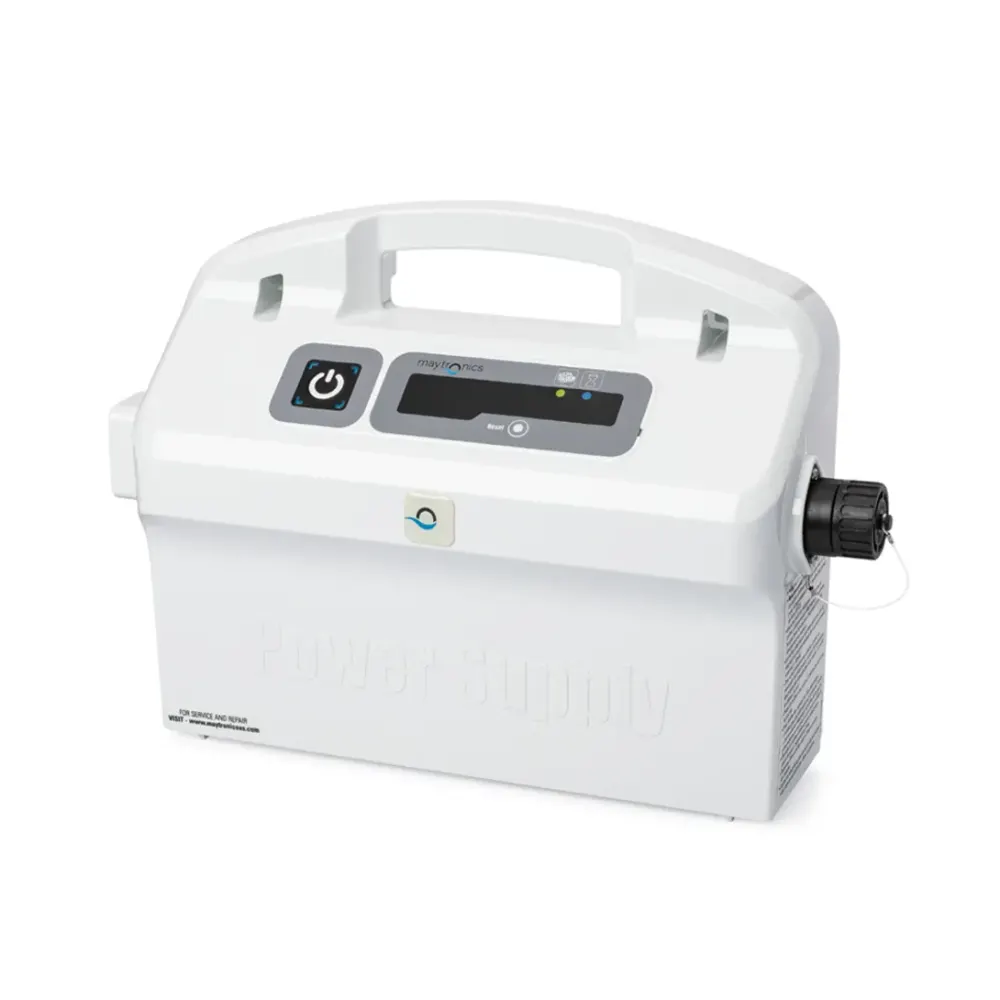
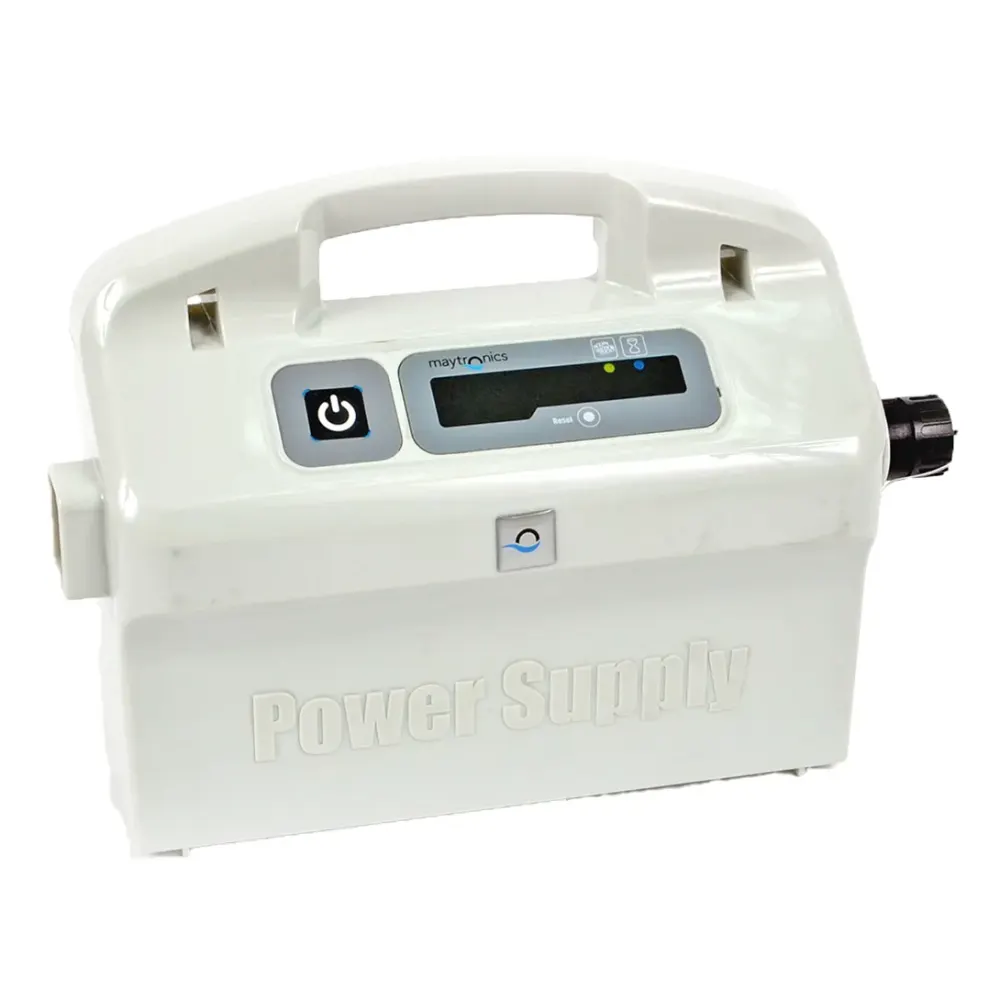
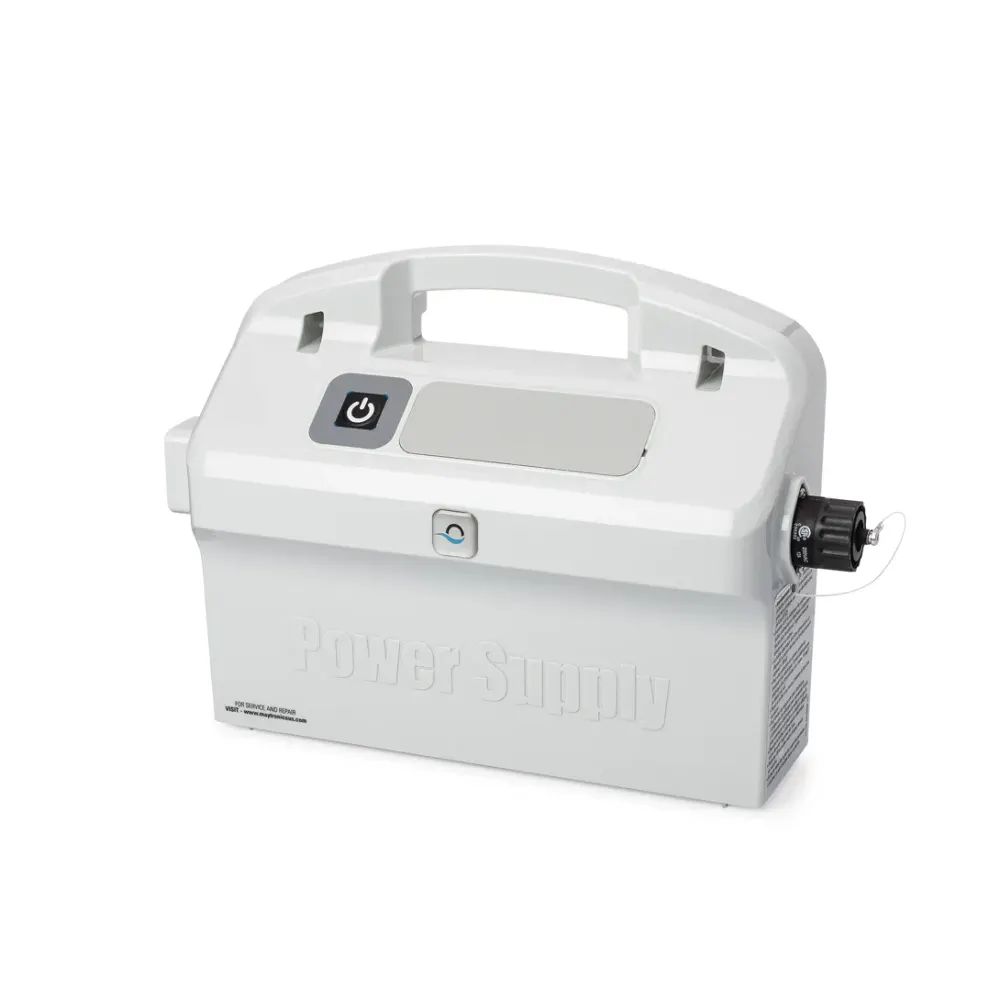
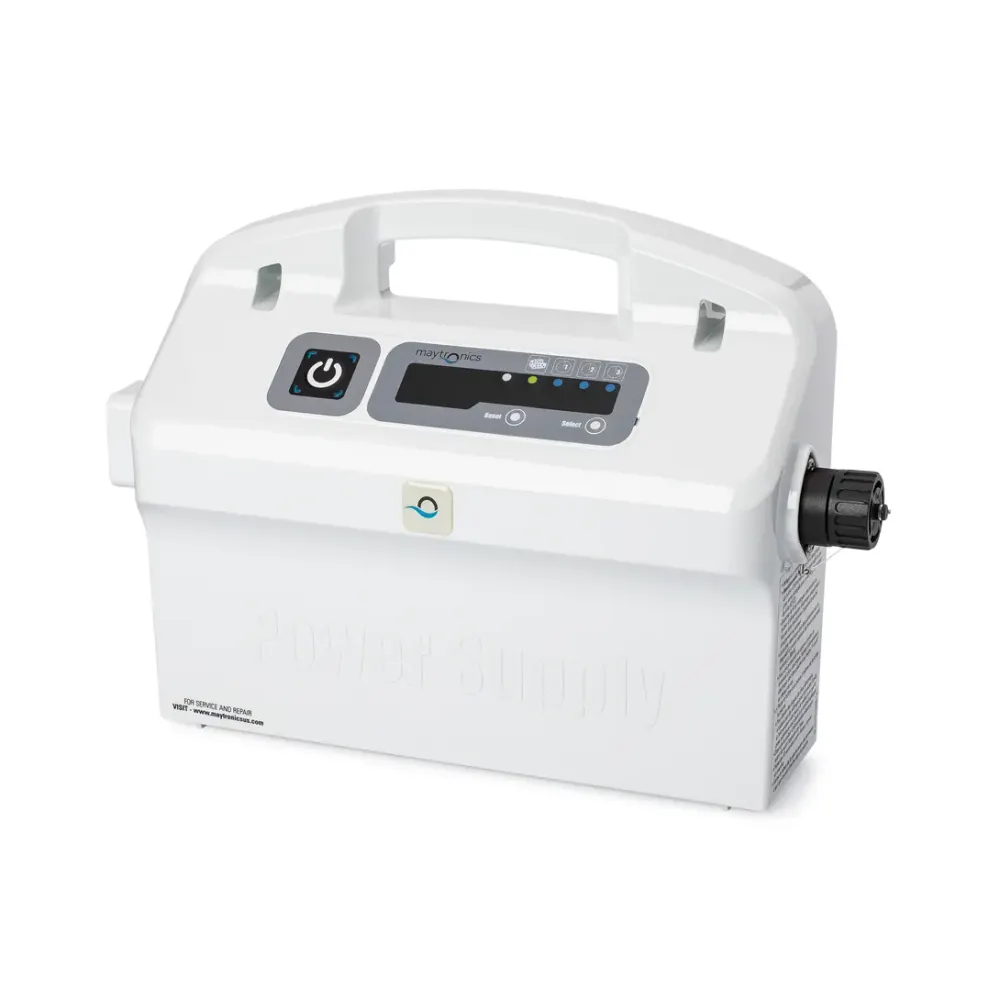
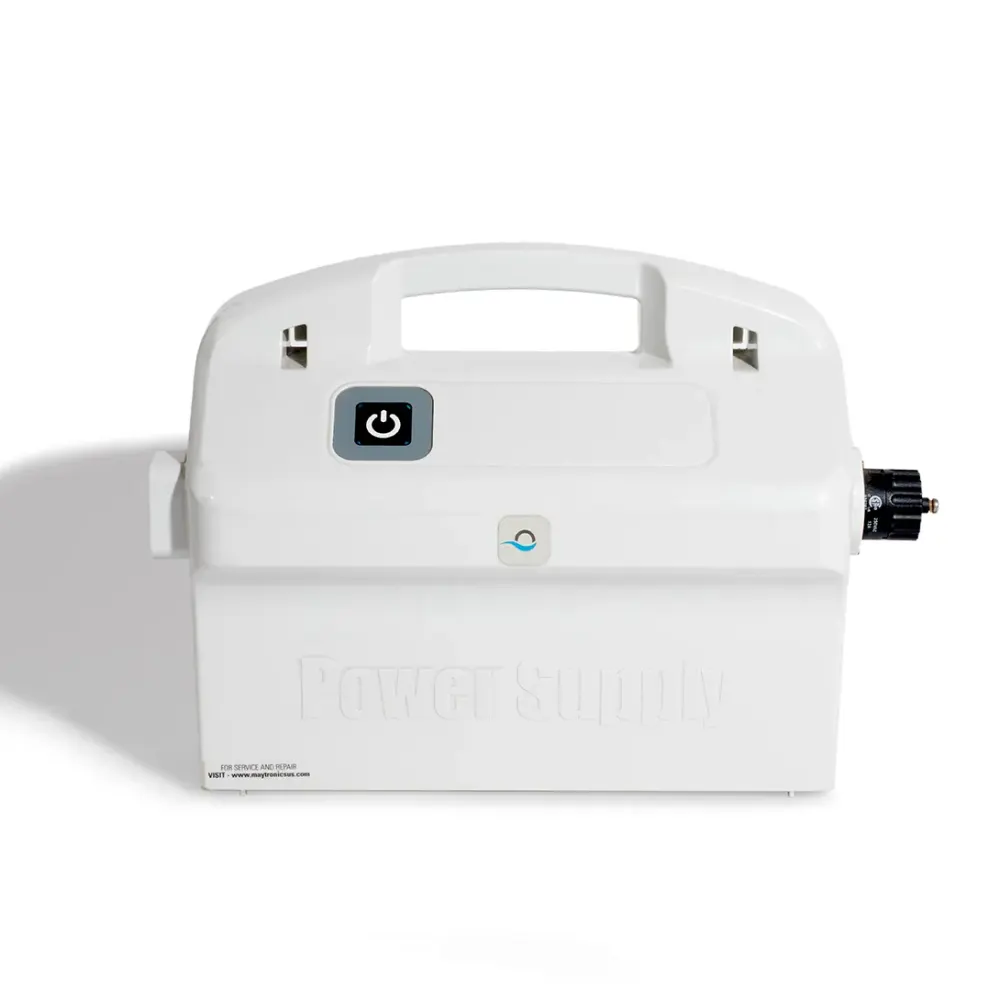
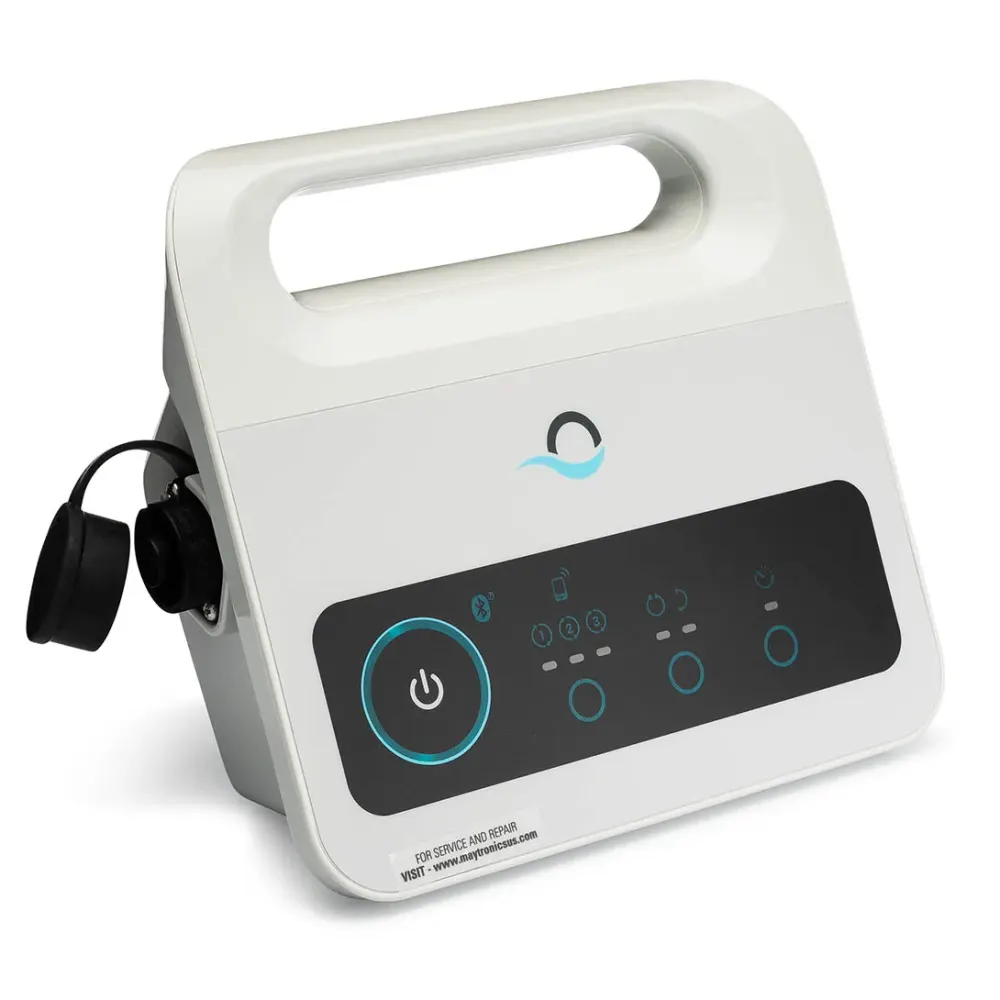
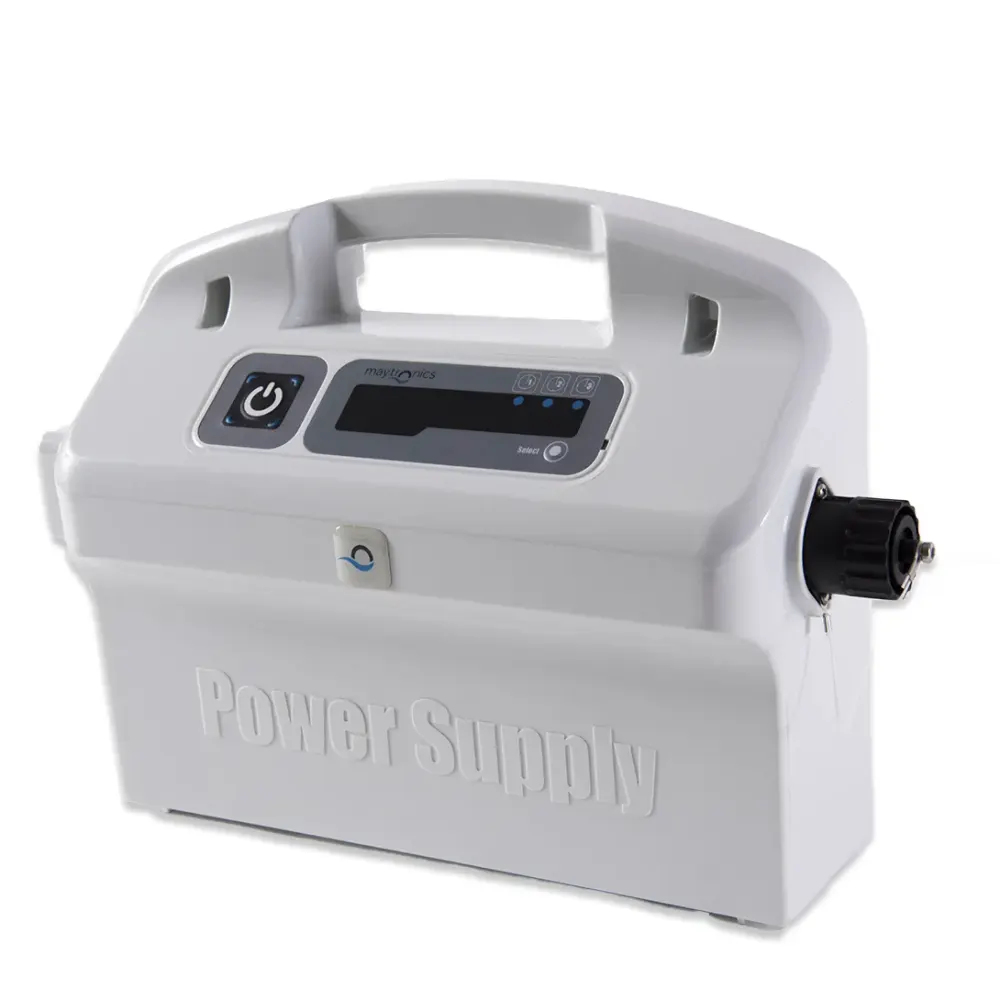
Dolphin 180W Power Supply With Filter Indicator
Part number 9995671-US-ASSY · UPC 810071220968 · 6 months part warranty
Genuine Maytronics 180W replacement power supply with a filter indicator for Dolphin Wave 60 and Dolphin Wave 80.
Condition NewIn stock, ready to ship
$329 MSRP $399
Save $70Free shipping
Overview
Replacement Dolphin Power Supply for C3, C4, C5, DLX5, DX6, Odyssey, Pro X2, Prowler 820, Wave 100, Wave 80, Wave 90.
- 180W Filter Indicator
- C3, C4, C5, Odyssey & More
- Genuine Replacement
- Maytronics Certified Part
Listed by Poolbots for: C3, C4, C5, DLX5, DX6, Odyssey, Pro X2, Prowler 820, Wave 100, Wave 80, Wave 90..
Delivery & returns
Free 1–3 day FedEx shipping to the 48 contiguous states, fully tracked. Estimated delivery from 1 business day to 3 business days.
30-day trial with no restocking fees. Shipping policy · Return policy · Warranty
About this part
What it does and when to replace it.
This genuine Maytronics 180W power supply provides power to your Dolphin robot. It is designed for models equipped with a filter bag indicator and delay operation.
Maytronics' spec sheet confirms compatibility with Dolphin Wave 60 and Dolphin Wave 80. Check part number 9995671-US-ASSY before ordering a replacement. If you need help confirming fit, contact Poolbots' pool experts by live chat or phone.
Highlights
- Replacement Power Supply 180W (Filter Indicator)
- For models featuring filter bag indicator and delay operation
- Compatible with: C3, C4, C5, DLX5, DX6, Odyssey, Pro X2, Prowler 820, Wave 100, Wave 80, Wave 90.
- Maytronics Certified Genuine Parts; Keep your Dolphin pool cleaner in top condition
- Confirm both your robot model and part number 9995671-US-ASSY before ordering.
- Do not use a visibly damaged power supply. Ask Poolbots' pool experts for help by live chat or phone.
Compatibility
Fits these Dolphin robots.
Confirmed by Maytronics' compatibility checker and each robot's own spare-parts list.
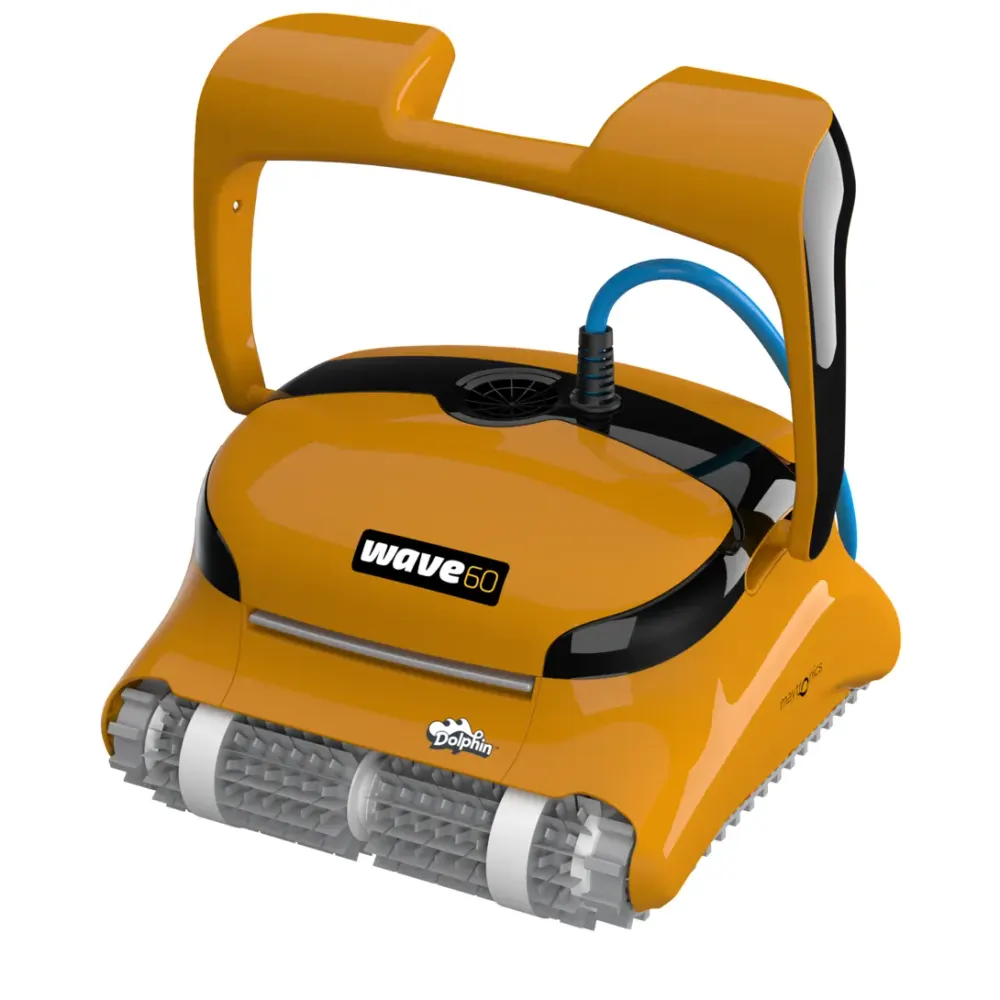
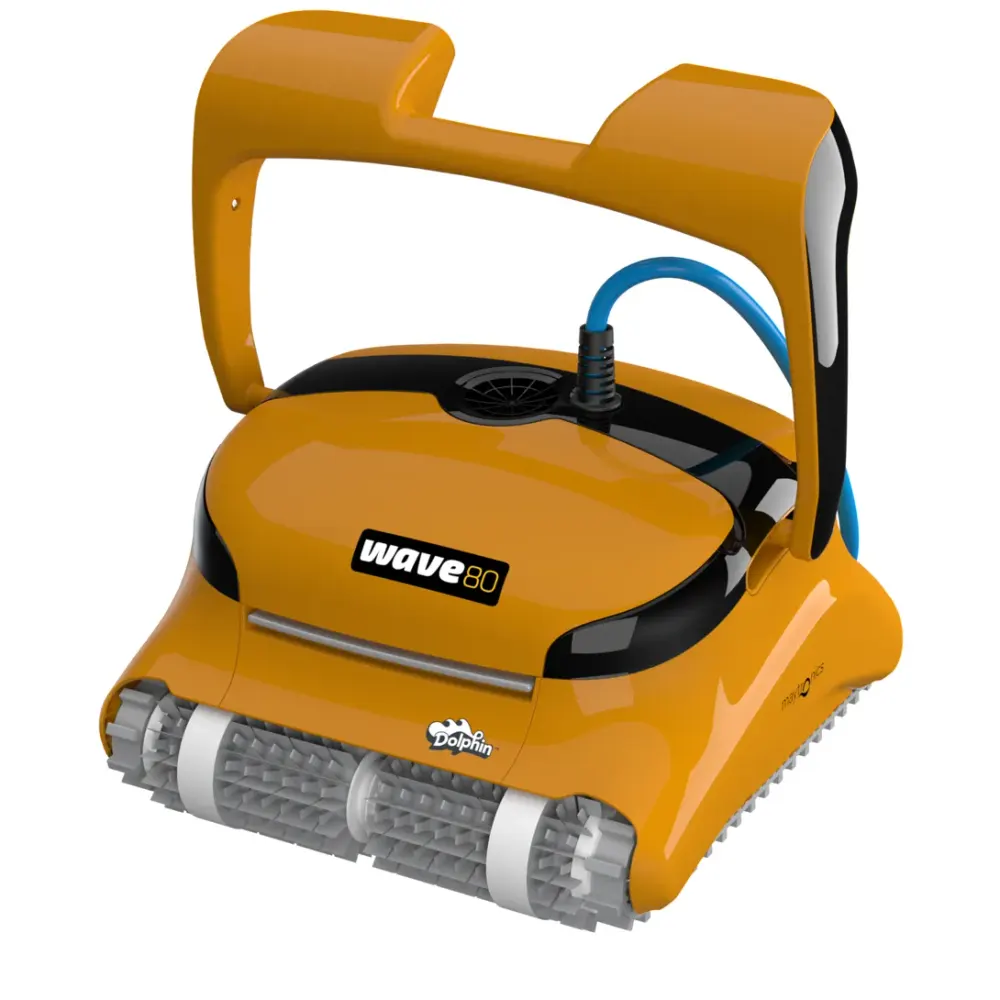
Also listed by Maytronics for: Dolphin Wave 60, Dolphin Wave 80.
Poolbots lists this power supplies and chargers item for: C3, C4, C5, DLX5, DX6, Odyssey, Pro X2, Prowler 820, Wave 100, Wave 80, Wave 90..
Do it yourself
How to replace it at home.
Switch off and unplug the power supply.
Disconnect the robot's cable from the old power supply.
Connect the robot's cable to the replacement power supply, following your robot's manual.
With hands and connections dry, plug in the replacement and switch it on to check operation.
Step-by-step answers for this kind of part
How do I replace the filter panels on my Dolphin robot?Video15 min
Find your model below, then follow its video and instructions. The panel removal and installation steps vary by filter design.
S50 (Cayman, T15, T25, Active 10, Escape, Encore, E20, E25) & S100 (Advantage, Proteus DX3, Saturn, Echo, Nautilus CC, Active 15, Escape, Liberty 200/300/400)

Step 1Remove the old filter panels
- Lift the filter cover open.
- Take the filter basket out of the robot.
- Press the plastic release at the top of the filter's wide side, then lift out the released panel. The narrow side panels come out easily. The front and back panels are secured with screws, so use a Phillips-head screwdriver to release them.
- Follow the same process for the opposite side panel.
Step 2Install the replacement panels
- Slide a replacement panel into the basket.
- Push the panel against the frame until it clicks into place.
- Fit the other side panel the same way.
- With both panels in position, clip the filter's bottom section back into place.
S200 (E30, Advantage Ultra, Active 20, Quantum, T30, Proteus DX4, Triton PS) / S300 (E35/E35i, Proteus DX5i, Active 30, T35/T45, Premium 40, Explorer E30, E40i, Active 30i, T55i) / S400 (E50i, Active 50, Explorer E50) / Liberty 600

Step 1Remove the old filter panels
- Lift the filter cover open.
- Take the filter basket out of the robot.
- Press the plastic release at the top of the filter's side, then lift out the panel that releases.
- Work through the remaining narrow and wide panels using the same method.
Step 2Install the replacement panels
- Set the bottom edge of a replacement panel into the filter's lower rail.
- Push the panel into the frame so it clips into the filter.
- Press it against the frame until you hear it click.
- Fit each remaining narrow and wide panel the same way.
Premier/Dx4 (Bag filter)

Filter bag setup for Dolphin Premier
- Turn the robot upside down so you can reach the filter area.
- Release the clips underneath the filter assembly.
- Lift the assembly out of the robot.
- If the white filter screen is not already fitted, secure it with the two screws.
- Check that the filter bag sits securely on the assembly's guard rails.
- Put the filter bag assembly back in, following the guide and video.
Filter cartridge assembly setup for Dolphin Premier
- Turn the robot upside down so you can reach the filter area.
- Release the clips underneath the filter assembly.
- Lift the assembly out of the robot.
- Make sure the white filter screen is not installed for this setup.
- Follow the guide and video to reinstall the assembly.
- Fasten the clips underneath the assembly to secure it.
M250 (Dx3, Nautilus CC Plus)

Step 1Prepare the filter cartridges
- Lift the filter covers and take the cartridges out of the robot.
- Release the clips at the top of each cartridge.
- Inspect the non-return flap for debris.
- Check that the frame is clean before fitting replacement panels.
Step 2Fit the replacement panels
- Seat the locating tabs along the bottom of each panel in the matching grooves on the base frame.
M400/M500 (Sigma, Nautilus CC Supreme, Aquarius XL, Oasis)
Step 1Prepare the filter cartridges
- Lift the filter covers and take the cartridges out of the robot.
- Release the clips at the top of each cartridge.
- Inspect the non-return flap for debris.
- Check that the frame is clean before fitting replacement panels.
Step 2Fit the replacement panels
- Seat the locating tabs along the bottom of each panel in the matching grooves on the base frame.
M600/M700 (Active 60, E60i, Premium 60, Explorer E70)

Step 1Remove the old filter panels
- Lift the filter cover open.
- Take the filter basket out of the robot.
- Press the plastic release at the top of the filter's side, then lift out the panel that releases.
- Work through the remaining narrow and wide panels using the same method.
Step 2Install the replacement panels
- Set the bottom edge of a replacement panel into the filter's lower rail.
- Push the panel into the frame so it clips into the filter.
- Press it against the frame until you hear it click.
- Fit each remaining narrow and wide panel the same way.
Replacement panels and filter care
You can purchase replacement filter panels from Poolbots. Before ordering, confirm that the panel part number matches your robot. For help choosing the correct panels, contact Poolbots' pool experts by live chat or phone.
Additional references:
Specifications
Product Info
- Automation Mode
- No
Size & Dimension
- Package Dimensions
- 11.9x5.0x8.7 inch
- Gross Weight
- 4.079 lb
General Info
- Warranty (years)
- 0.5
- UPC
- 810071220968
Questions
Dolphin 180W Power Supply With Filter Indicator, answered.
Which Dolphin robots fit this power supply?
Maytronics confirms compatibility with Dolphin Wave 60 and Dolphin Wave 80. It is intended for models with a filter bag indicator and delay operation.
Does this power supply support automation mode?
No. The Maytronics spec sheet lists this power supply as having no automation mode.
What warranty comes with this part?
The listed warranty for this replacement power supply is six months.
Power Supplies & Chargers
Related parts.


Try It for 30 Days
Try any robot or part in your pool for 30 days. We believe a pool robot is an investment, and we know you'll love it. Which is why we have a 30 Day Trial. If you don't love it, simply return it. Unlike the other guys, we never charge a restocking fee or any other fees - meaning no restocking fee ever.
Here at Poolbots, we carry only the top models for the top brands. All of our products are backed by a full manufacturer's warranty.

